


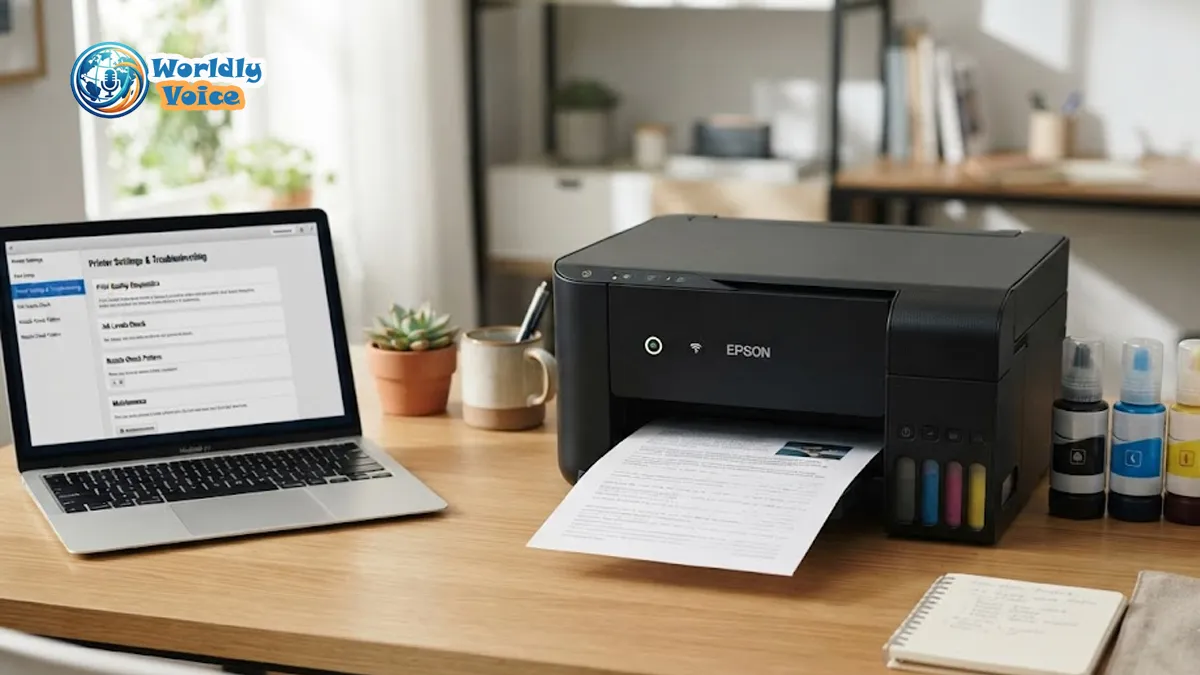
If your Epson ET 2800 suddenly stops printing, prints blank pages, shows a paper mismatch warning, or appears offline, I know how frustrating that feels. I’ve tested enough home printers to know the pattern: the job is urgent, the printer was working yesterday, and now it refuses to cooperate. The Epson EcoTank ET-2800 is a reliable cartridge-free printer, but like any refillable ink tank system, it needs the right setup, clean ink flow, stable connectivity, and proper paper settings to perform well.
In this Epson ET 2800 troubleshooting guide, I’ll walk through the most common problems I see in real-world use: blank pages, faded prints, clogged nozzles, offline status, Wi-Fi errors, and the annoying paper mismatch message. I’ll also share practical Epson EcoTank maintenance tips, ink advice, and simple checks that can save you from unnecessary repairs.
If you like troubleshooting tech gear, this is similar to diagnosing storage issues in Akai DR8 Storage workflows or camera transfer problems with the Fujifilm X-T5. The trick is not guessing. It’s following a clean sequence.
1. Start With the Basics Before Running Deep Cleaning
Before assuming the printer is broken, I always start with simple checks. Many Epson EcoTank print errors come from small setup issues rather than hardware failure.
Check these first:
- Is the printer powered on and awake?
- Is there an error message on the screen?
- Are all ink tanks filled above the lower line?
- Is the rear paper feed loaded correctly?
- Is the printer selected as the default printer?
- Is the USB cable or Wi-Fi connection stable?
- Are you printing to the correct Epson model?
In my experience, the “wrong printer selected” issue happens more often than people admit. If you have old printer drivers installed, Windows or macOS may send the print job to a previous printer profile.
For Windows users, open Settings > Bluetooth & devices > Printers & scanners. On Apple macOS, go to System Settings > Printers & Scanners. Confirm the Epson EcoTank ET-2800 is selected.
If the print job is stuck, cancel all queued jobs and restart both the printer and computer. That one-minute reset can clear temporary communication errors.
2. Fix Blank Pages, Faint Prints, Lines, and Gaps
Print quality problems are the most common reason people search for How to fix Epson ET 2800 print errors. The EcoTank system uses liquid ink, and if the printer sits unused for days or weeks, ink can dry around the print head nozzles.
You may notice:
- Blank pages
- Missing colors
- Horizontal lines
- Faded text
- Grainy photos
- Uneven black ink
- Colors that look washed out
The first step is a nozzle check.
Run a Nozzle Check
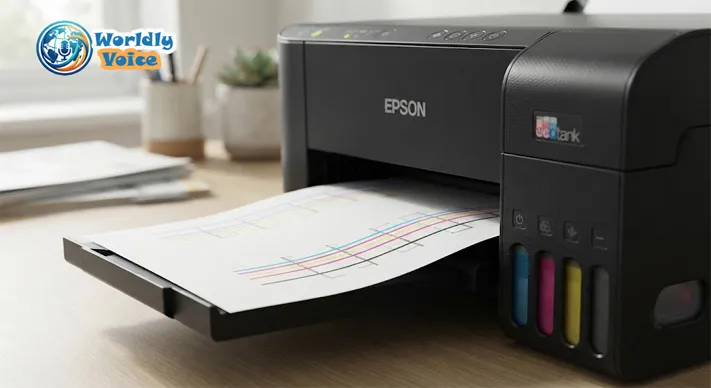
On the printer control panel, go to the maintenance menu and choose Nozzle Check. The printer will print a test pattern. If the lines are complete, the print head is likely fine. If you see broken lines or missing segments, the nozzles may be clogged.
I recommend keeping the nozzle check sheet next to the printer while troubleshooting. It gives you visual proof of whether cleaning is helping or making no difference.
Run Print Head Cleaning
If the nozzle pattern has gaps, run standard print head cleaning. This pushes ink through the nozzles to clear dried ink.
Do not run cleaning cycles repeatedly without checking results. Two or three cycles are usually enough for mild clogs. After each cleaning, print another nozzle check.
Too many cleaning cycles waste ink and fill the maintenance box faster.
Use Power Cleaning Only as a Last Resort
Power Cleaning is stronger than normal print head cleaning. It uses more ink and should only be used when standard cleaning fails.
Before Power Cleaning:
- Make sure all ink tanks are at least one-third full.
- Confirm there are no paper jams.
- Avoid turning the printer off during the process.
- Wait several hours before repeating it.
A useful distinction: many people search for Epson PrecisionCore print head cleaning, but the ET-2800 is commonly associated with Epson’s Heat-Free Micro Piezo printhead technology rather than the higher-end PrecisionCore system used in other Epson lines. The cleaning principle is similar, though: restore steady ink flow without damaging the print head.
3. Understand the Epson ET 2800 Paper Mismatch Error
The Epson ET 2800 Paper mismatch error usually appears when the paper settings inside the printer or software do not match the paper loaded in the rear tray.
For example, the printer may be set to photo paper while plain letter paper is loaded. Or your computer may send an A4 print job while the printer expects Letter size.
This mismatch can stop printing even when nothing is physically wrong.
How to Fix Paper Mismatch
Try this sequence:
- Remove the paper and reload it neatly.
- Slide the edge guide against the paper, but do not squeeze it.
- Confirm the paper size on the printer screen.
- Check paper size in your print dialog.
- Match media type: plain paper, matte, glossy, envelope, etc.
- Restart the print job.
On some Epson models, you can turn off the warning through Settings > Guide Functions > Paper Mismatch > Off. I only suggest doing this if you understand the risk. The warning exists to prevent bad prints, wrong scaling, and wasted paper.
Paper condition matters too. Damp, curled, dusty, or overfilled paper stacks can cause feed issues. Most Epson printer paper feed issues are not caused by the rollers at first. They start with paper storage.
Quick Paper Settings Table
| Problem | Likely Cause | Fix |
|---|---|---|
| Paper mismatch warning | Software and printer settings do not match | Match paper size and type in both places |
| Paper feeds crooked | Edge guide too loose or paper curled | Reload paper and adjust guide |
| Printer says out of paper | Paper not inserted far enough | Reload and align stack |
| Ink smears | Wrong media type selected | Choose correct paper type |
| Photo prints look dull | Plain paper setting used for photo paper | Select glossy or photo paper |
4. Restore Offline Printer Status and Wi-Fi Printing
Few things are more irritating than seeing your printer listed as offline when it is clearly powered on. Printer offline status restoration usually comes down to network visibility.
I’ve seen this happen after router updates, password changes, power outages, or switching from one Wi-Fi band to another.
The ET-2800 works best on a stable 2.4 GHz Wi-Fi network. If your router combines 2.4 GHz and 5 GHz under one network name, the printer may sometimes struggle to reconnect.
Wireless Printer Connection Troubleshooting Steps
Use this checklist:
- Restart the router.
- Restart the printer.
- Move the printer closer to the router.
- Confirm the Wi-Fi password.
- Reconnect the printer through Wi-Fi setup.
- Remove and re-add the printer on your computer.
- Update or reinstall the Epson driver.
- Check whether VPN software is blocking local printing.
For official help, Epson provides support resources for Wireless printer connection troubleshooting, and Microsoft also offers guidance for Windows printer connection problems.
If USB printing works but Wi-Fi does not, the printer hardware is probably fine. The issue is likely network configuration.
This is where a structured approach helps, much like following a clean software diagnosis in How to Fix the Error Llekomiss. You isolate one layer at a time: power, printer, router, driver, operating system.
5. Use the Right Ink for Reliable EcoTank Printing
Ink quality matters more in tank printers than many users expect. The Best ink for Epson EcoTank printers is generally genuine Epson ink designed for the model.
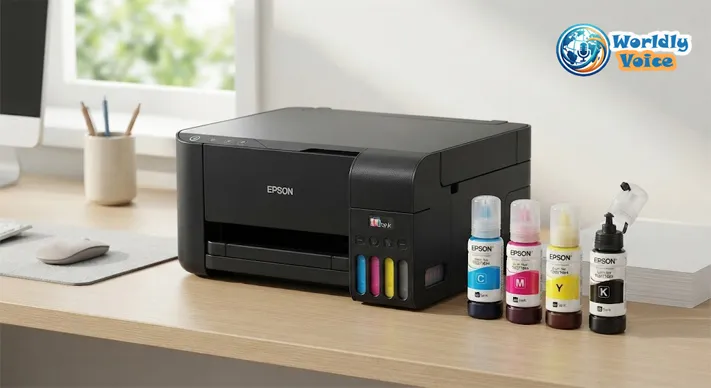
The ET-2800 commonly uses Epson EcoFit ink bottles, including the EcoFit ink bottle series T522 depending on region and package. These bottles are designed to fit the tank openings and reduce accidental color mixing.
You can review Epson’s official ink information through Best ink for Epson EcoTank printers.
Genuine Ink vs. Third-Party Ink
Third-party ink can be cheaper, and some users report acceptable results. But there are trade-offs.
Genuine Epson ink usually offers:
- Better color consistency
- Lower clogging risk
- More predictable print quality
- Warranty-safe usage
- Proper bottle fit
Third-party ink may cause:
- Color shifts
- Sediment buildup
- Nozzle clogging
- Warranty complications if damage occurs
- Inconsistent page yield
I’m not saying every non-genuine ink will destroy a printer. But when fixing ink clog in EcoTank models, I often ask one question early: “What ink was used?” The answer can explain a lot.
For refillable ink tank system optimization, keep bottles sealed until use, avoid dust near the tank ports, and never mix ink types. If black ink was poured into the wrong color tank, stop using the printer and seek professional service.
6. Apply Epson EcoTank Maintenance Tips That Prevent Future Errors
Preventive maintenance is easier than emergency repair. The most reliable EcoTank printers I’ve used are the ones that print at least a few pages every week.
For practical Epson EcoTank maintenance tips, Epson’s support pages are a useful reference, but here is the field-tested version I follow.
Print Something Weekly
Print a short color document once a week. It does not need to be large. A small test page with black, cyan, magenta, and yellow is enough to keep ink moving.
Keep Ink Above the Minimum Line
Do not let tanks run dry. Air entering the ink system can create print gaps and may require stronger cleaning.
Use the Printer in a Stable Environment
Avoid placing it near windows, heaters, or dusty shelves. Heat dries ink faster. Dust can affect rollers and paper feed.
Load Paper Correctly
Fan the paper stack, align it, and avoid overloading the rear feed. If paper feels damp or curled, replace it.
Update Drivers When Needed
If printing fails after an operating system update, download the latest Epson software package. This is especially important after major Windows or macOS updates.
Avoid Unnecessary Deep Cleaning
Deep cleaning is useful, but not routine maintenance. Use it only when nozzle checks show persistent gaps.
7. Quick Diagnostic Table: Symptom, Cause, and Best Fix
Use this table when you need a fast decision path.
| Symptom | Most Likely Cause | Best First Fix |
|---|---|---|
| Blank pages | Clogged nozzles or empty ink path | Run nozzle check, then head cleaning |
| Missing colors | Dried ink or low tank level | Check ink level and clean print head |
| Printer offline | Wi-Fi or driver issue | Restart router and re-add printer |
| Paper mismatch | Wrong size/type setting | Match printer and software settings |
| Lines in prints | Partial nozzle clog | Run nozzle check and cleaning |
| Paper jam message | Misfed or curled paper | Remove paper, inspect path, reload |
| Slow printing | High-quality mode or weak Wi-Fi | Use standard mode or USB test |
| Smudged ink | Wrong paper type selected | Change media setting |
Most studies and manufacturer guidance agree on one point: inkjet reliability depends on regular use, correct ink, and clean paper handling. My own testing lines up with that. Neglected printers clog. Well-used printers last longer.
8. When the Problem May Require Service
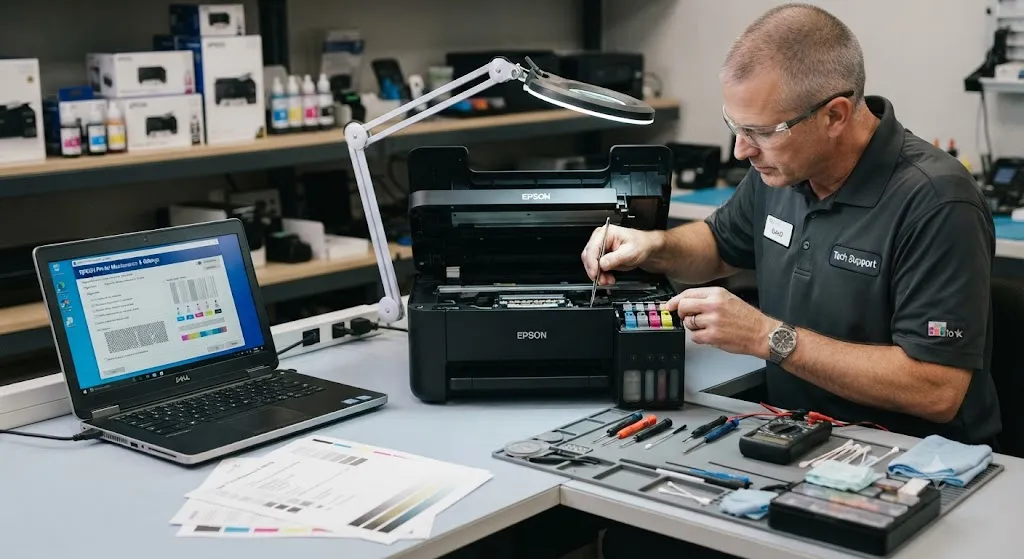
Not every issue can be fixed at home. If you have tried basic checks, nozzle cleaning, driver reinstalling, and paper setting corrections, the printer may need service.
Consider professional help if:
- Power Cleaning does not improve nozzle checks.
- The printer makes grinding noises.
- Ink leaked inside the unit.
- The wrong ink was added to a tank.
- Paper tears inside the feed path repeatedly.
- Error codes remain after restart.
- The printer was stored for months without preparation.
If the printer is under warranty, contact Epson before using cleaning fluids or disassembling anything. DIY printhead flushing can cause more damage if done incorrectly.
This is similar to delicate electronics troubleshooting in Akai DR8 Storage systems or sensor-care decisions for a Fujifilm X-T5. Sometimes restraint protects the device.
FAQs About Epson ET-2800 Not Printing
Why is my Epson EcoTank ET-2800 printing blank pages?
Blank pages usually mean clogged nozzles, low ink flow, or incorrect print settings. Run a nozzle check first. If the pattern has gaps, use print head cleaning. Also confirm the document is not blank and the correct printer is selected.
How often should I clean the print head?
Only clean it when print quality drops or the nozzle check shows missing lines. Routine deep cleaning wastes ink. For normal EcoTank printer maintenance, weekly printing is better than frequent cleaning.
Why does my printer keep saying paper mismatch?
The printer’s paper size or type setting does not match the paper loaded or the settings in your computer’s print dialog. Match both sides. The Epson ET 2800 Paper mismatch error is usually a settings issue, not a broken sensor.
Can I use third-party ink in my Epson EcoTank?
You can, but I recommend genuine Epson ink for reliability. Third-party ink may work, but it can increase clogging risk or affect warranty coverage if it causes damage.
Why does my printer show offline after changing Wi-Fi?
The printer is still trying to connect to the old network credentials. Reconnect it through wireless setup, then remove and re-add it on your computer. This is the fastest path for printer offline status restoration.
Is this troubleshooting similar to other tech errors?
Yes. Whether you’re solving printer issues, checking How to Fix the Error Llekomiss, managing Akai DR8 Storage, or transferring photos from a Fujifilm X-T5, the best method is the same: isolate the simplest cause first.
Conclusion: Fix the Printer Step by Step
The Epson ET 2800 is a capable home printer, but it depends on steady ink flow, correct paper settings, and stable connectivity. If it stops printing, start simple. Check ink levels, paper loading, printer selection, and Wi-Fi. Then move to nozzle checks, head cleaning, driver updates, and paper mismatch settings.
In my experience, most issues are fixable without replacing the printer. The key is patience. Don’t run deep cleaning too quickly. Don’t ignore paper settings. Don’t use questionable ink if long-term reliability matters.
If you maintain the printer weekly, use suitable ink, and follow a logical troubleshooting path, your EcoTank can stay dependable for everyday documents, schoolwork, labels, and photos.
For broader device-care thinking, keep related guides like Akai DR8 Storage, Fujifilm X-T5, and How to Fix the Error Llekomiss in your troubleshooting toolkit.
References
- Epson Support: Epson EcoTank ET-2800 product support and maintenance resources
- Epson Ink Information: EcoTank ink bottle compatibility and genuine ink guidance
- Microsoft Support: Windows printer connection and offline troubleshooting guidance
