


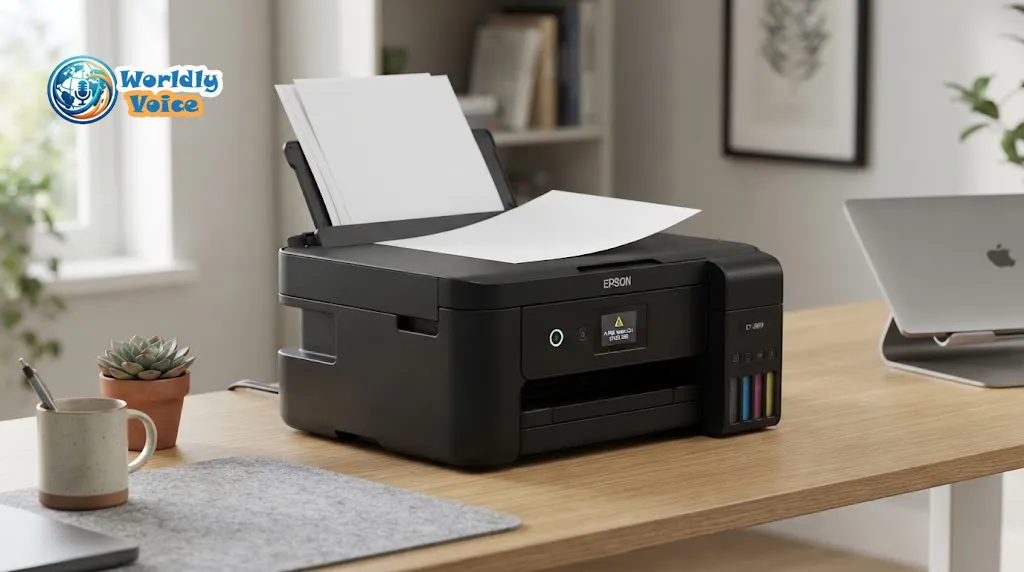
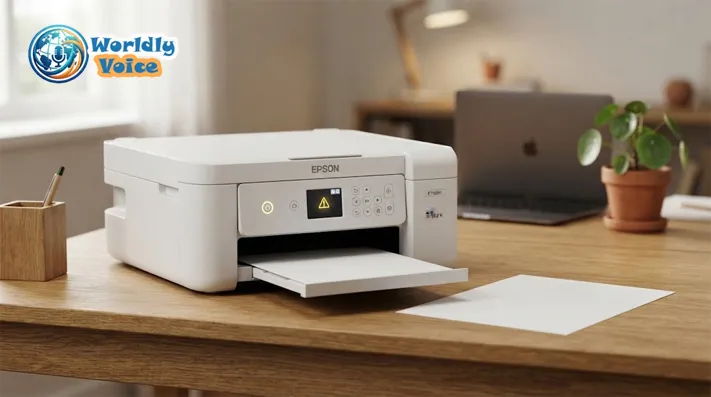
A print job that should take ten seconds stalls, and the small LCD on the printer says the paper doesn’t match. The Epson ET-2800 paper mismatch error rarely means anything is physically wrong. It means the printer, your computer, and the document disagree about what is sitting in the rear tray. Usually the disagreement is A4 versus Letter, or plain paper versus photo paper. Each of the seven fixes below targets one place where it can start, so work through them in order and stop when the job prints.
What Does the Epson ET-2800 Paper Mismatch Error Mean?
The printer compares what you told it about the paper with what the print job asks for. Epson’s User’s Guide covers this under Error Notice, which has two switches: Paper Size Notice and Paper Type Notice. When either is on, the ET-2800 shows an error if the selected size or type doesn’t match the loaded paper.
So the message is a safeguard, not a malfunction. It stops a job from printing on the wrong sheet, which wastes paper and ink. The drawback is that a stale setting, such as a photo size left over from last weekend, can block an ordinary document.
Four things have to agree:
- The paper physically sitting in the rear feeder
- The size and type selected on the printer’s own screen
- The size and type chosen in the print dialog on your computer or phone
- The page size built into the document itself
When any two disagree, you get the Epson ET-2800 paper size mismatch message. If the printer isn’t printing at all and no paper warning appears, our ET-2800 not printing troubleshooting guide covers blank pages, connection trouble, and print-quality problems.
Why Does the Epson ET-2800 Show a Paper Size Mismatch?
Most cases follow a few patterns:
| Situation | Paper loaded | Setting that disagrees |
|---|---|---|
| A4 sheets in the tray | A4 | Printer panel still set to Letter |
| Document formatted for A4 | Letter | Page size inside the file is A4 |
| Everyday plain-paper job | Plain paper | Paper type left on a photo or glossy option |
| Normal paper after printing photos | Plain paper | Leftover photo size from the previous job |
The last row is easy to miss because a saved paper setting stays in place until someone changes it.
7 Easy Fixes for Epson ET-2800 Paper Mismatch Error
The fixes run from physical to digital: the tray first, then the printer, the computer, and finally the document.
1. Check and Reload the Paper
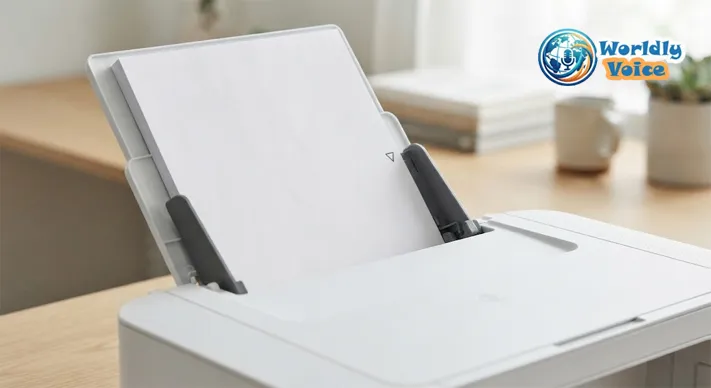
Take the stack out and confirm its real size, which is usually printed on the packaging. Then reload it as Epson’s rear paper feeder instructions describe. Fan the sheets, tap the edges level, and insert them short edge first with the printable side up, in the center of the paper support. Slide the edge guides against the paper without squeezing it, and keep the stack below the arrow mark inside the guides.
Paper condition matters too. Epson advises against wavy, damp, curled, or torn sheets, which cause feeding trouble of their own. If the LCD asks for a size and type after loading, answer it. That prompt is the quickest way to set the printer correctly.
2. Match the Printer’s Paper Size and Type
On the printer, press Home and choose Settings > Printer Setup > Paper Source Settings > Paper Setting. Select the size and type of the paper that is actually in the tray, such as A4 with Plain Paper, or Letter with Plain Paper. Clearing this paper size error often takes nothing more than that.
Don’t just switch the printer to a particular size. Someone who buys A4 paper shouldn’t be told to select Letter, and the reverse is just as true. Epson’s Paper Source Settings Options page lists everything in this menu, including A4/Letter Auto Switching, Error Notice, and Paper Setup Auto Display, which come up again below.
3. Check Your Computer’s Print Settings
A correctly configured printer can still receive a different size from the computer. Open the document, choose Print, select the ET-2800, and open Printer Preferences or Properties. Check paper size, paper type, orientation, paper source, and any scaling or fit-to-page option. Menu labels vary between apps and driver versions, so look for the closest equivalent rather than one fixed path. The size and type here must match what you set on the printer in Fix 2.
4. Check the Document’s Page Size
The printer, the print dialog, and the file don’t always take their size from the same place. A Word file built on A4 pages can be sent to a printer holding Letter. A PDF carries its own page dimensions. Google Docs has its own page setup, and design tools such as Canva build the canvas at a chosen paper size.
Check the page size inside the app. In Word, look under Layout > Size. In Google Docs, look under File > Page setup. Then either change the document to match your paper or load paper that matches the document. If the content must stay as it is, a scale-to-paper option in the print dialog may let it fit, depending on the app.
5. Turn On A4/Letter Auto Switching
This is the most ET-2800-specific fix. Epson describes A4/Letter Auto Switching as a setting that switches the selected paper size to match the loaded paper, Letter or A4, when the wrong one is selected. You’ll find it under Settings > Printer Setup > Paper Source Settings. It helps a household or office that receives both A4 and Letter documents, since a file in one size no longer halts a printer loaded with the other.
It has limits, though:
- It only handles the A4/Letter pair.
- It concerns paper size, not paper type.
- A document built for one size and printed on the other can still be scaled or clipped slightly, depending on the app.
Think of it as a convenience, not a substitute for matching paper to the job.
6. Turn Off the Paper Size Warning (Only If You Understand the Trade-Off)
The Error Notice menu has separate Paper Size Notice and Paper Type Notice options. Switching Paper Size Notice off stops the message from appearing. The path is Settings > Printer Setup > Paper Source Settings > Error Notice.
Treat this as a workaround, not a repair. The notice catches jobs heading for the wrong paper, and with it off the printer may go ahead and produce something scaled, cropped, or otherwise unexpected. It can make sense when you deliberately print on stock that doesn’t match the settings and you know what to expect.
Don’t confuse it with Paper Setup Auto Display, a different setting. Epson notes that if you disable Paper Setup Auto Display, you cannot print using AirPrint.
7. Restart the Print Job After Rechecking Everything
Old jobs can carry old settings. Cancel the pending job from the print queue on the computer, or with the printer’s cancel button. Then remove the paper and reload it, confirm the size and type on the printer, and recheck the print dialog. If the app keeps reverting to an old size, close and reopen it, then send the job again.
Cancelling matters because a job queued under one size can keep asking for that size even after you’ve fixed the printer.
A4 vs Letter: Why Your Epson ET-2800 May Show the Wrong Paper Size
A4 measures 210 × 297 mm. Letter is 8.5 × 11 inches, roughly 216 × 279 mm, so it is about 6 mm wider and 18 mm shorter. The two look interchangeable on a shelf, but the printer treats them as different sizes.
That is why this problem is so common where both circulate. A4 is the everyday standard across most of the world, while Letter is standard in North America. Anyone who downloads a US-formatted PDF, or exchanges files with colleagues abroad, will eventually meet the mismatch.
It also explains a frequent complaint: the ET-2800 says Letter when you loaded A4. The paper is fine and the setting hasn’t caught up. Correct it in Fix 2, or let Fix 5 handle the pair automatically.
How to Fix the ET-2800 Paper Mismatch on Windows
Open the document, choose Print, and select the ET-2800. Open Printer Properties or Preferences and check the paper size and paper type, then any scaling option. Confirm that the page size inside the document matches, and print again.
If every app keeps returning to the wrong size, the saved default may be the cause. In Windows 11, you can usually find it under Settings > Bluetooth & devices > Printers & scanners > your printer > Printing preferences. Wording differs by Windows and driver version, so the exact labels may not match.
How to Fix the ET-2800 Paper Mismatch on Mac
In the Print dialog, check the Paper Size menu first. Epson-specific options such as media type usually sit in a drop-down menu in the dialog, though its label depends on the macOS version and the app. Where the app offers it, File > Page Setup also controls the document’s page size. Check scaling, then confirm the document’s own size, as in Fix 4. Keep this brief, since the point is only to find where the disagreement lives.
What If the Error Happens When Printing From a Phone?
Phones add a fifth place for a mismatch. Epson lists the ET-2800 as compatible with its Epson Smart Panel app, and phone print screens can pick a different default size than your desktop. Check the same four items: paper loaded, printer paper setting, the size shown in the print preview, and whether the app or browser has quietly chosen another size.
If you use AirPrint, remember the Epson note from Fix 6. Turning off Paper Setup Auto Display disables AirPrint, so leave it on if you print from an iPhone or iPad.
Paper Size Mismatch vs Paper Type Mismatch
These are separate checks, as Epson’s Paper Size Notice and Paper Type Notice show. You can have the right size with the wrong type, such as Letter paper while the printer is set to glossy photo paper. You can also have the right type with the wrong size, such as A4 plain paper while the printer expects Letter plain paper.
The message may look the same either way, so read it closely and confirm both settings. Choosing the correct type also matters for print quality, so it deserves more than a quick click.
When the Epson ET-2800 Still Shows the Error
If the Epson ET-2800 paper mismatch error survives all seven fixes, resist the urge to reach for heavy tools. A factory reset, driver reinstall, print head cleaning, Power Cleaning, an ink change, or a Wi-Fi reset targets different problems. None is a logical first move for a size or type disagreement.
Try a fresh stack from a different, undamaged ream, in case the sheets are curled or damp. Then restart the printer and send a short test page from a different app. If the symptom is actually an “offline” message rather than a paper warning, that is a connection issue, and our guide on why an Epson printer keeps going offline covers it. For anything else, Epson’s ET-2800 support page offers downloads, FAQs, guided assistance, and the full User’s Guide.
Frequently Asked Questions
Why does my Epson ET-2800 keep saying paper mismatch after I fixed the settings?
A queued job can still carry the old size. Cancel it, reload the paper, confirm the printer setting, and close and reopen the app before sending the job again.
How do I change the paper size on my Epson ET-2800?
Press Home and choose Settings > Printer Setup > Paper Source Settings > Paper Setting. Pick the size and type of the paper you loaded. Then set the same size in your computer’s print dialog.
Can I turn off the Epson ET-2800 paper mismatch warning?
Yes. Switch Paper Size Notice off under Error Notice in Paper Source Settings. The printer may then print on mismatched paper without warning, so unexpected scaling or cropping is possible.
Why does my ET-2800 ask for the paper size every time I load paper?
That prompt comes from Paper Setup Auto Display. It is useful for keeping settings accurate, and Epson says disabling it stops AirPrint from working.
Why does my ET-2800 say Letter when I have A4 paper?
The printer’s saved paper setting is still Letter. Change it in Paper Setting, or turn on A4/Letter Auto Switching so it adjusts between the two sizes.
Conclusion
The Epson ET-2800 paper mismatch error is almost always a settings disagreement, not a broken part. Check the tray first, match the printer’s size and type to the paper, then align the print dialog and the document’s page size. If you handle both A4 and Letter regularly, A4/Letter Auto Switching removes a lot of friction. Reserve the warning-off option for cases where you understand the consequences. For your next print, set the printer’s paper size at the moment you load a new stack, so the setting never lags behind the paper.
References
- Epson, “Loading Paper in the Rear Paper Feeder,” ET-2800/ET-2803 User’s Guide. https://files.support.epson.com/docid/cpd6/cpd60271/source/printers/source/paper_loading/tasks/et2720_l3160/loading_paper_rear_feed_et2720_l3160.html
- Epson, “Paper Source Settings Options” and “Selecting the Default Paper Source Settings,” ET-2800/ET-2803 User’s Guide. https://files.support.epson.com/docid/cpd6/cpd60271/source/printers/source/paper_loading/reference/et2720_l3160/paper_source_settings_options_et2720_l3160.html
- Epson US, “Epson ET-2800 | Support.” https://epson.com/Support/Printers/All-In-Ones/ET-Series/Epson-ET-2800/s/SPT_C11CJ66202
