


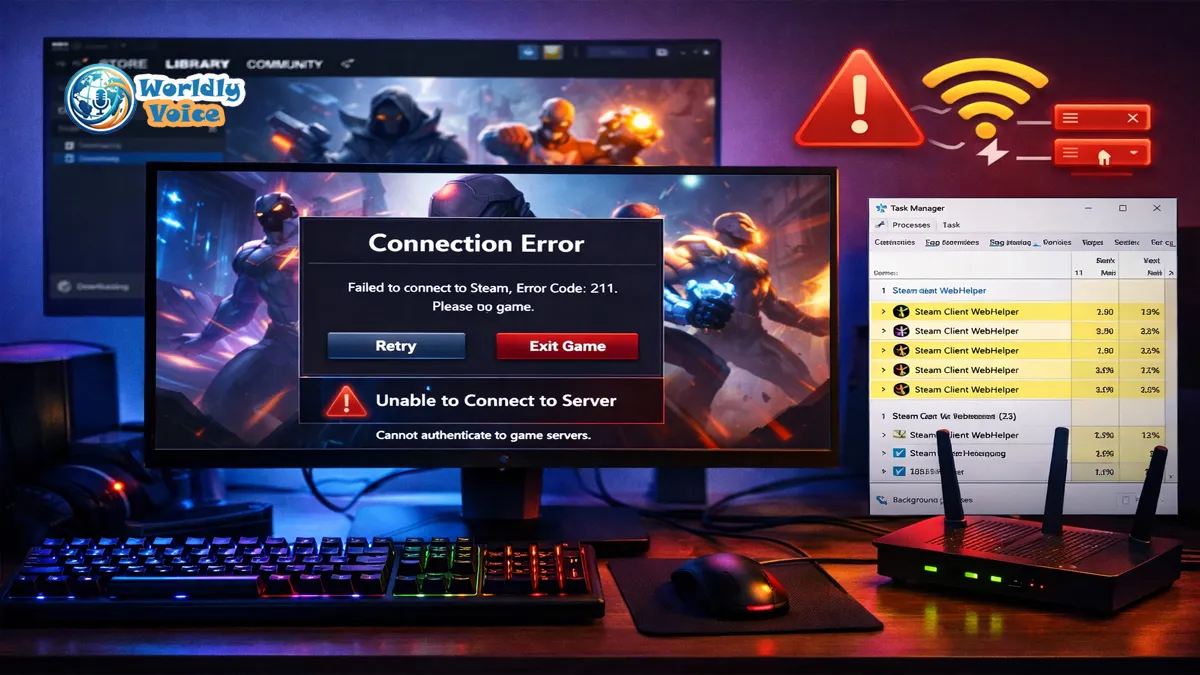
If you searched for error code 211 Marvel Rivals, you are probably stuck before the match even begins. I have seen this issue appear most often on PC through Steam, usually with the message: “Failed to connect to Steam. Error code 211.” It feels like a server outage at first, but in many cases, it is actually a Steam authentication problem.
In simple terms, Marvel Rivals is trying to confirm that your Steam account is valid and connected. If that handshake fails, the game blocks login. You cannot reach multiplayer, matchmaking, or the main online experience.
We tested the usual fixes across Steam restarts, file verification, DNS changes, VPN checks, and firewall rules. The fastest solution was usually a complete Steam shutdown through Task Manager, not just closing the Steam window.
This guide walks you through How to fix Marvel Rivals error code 211 step by step, without making the process feel more technical than it needs to be.
If you enjoy practical troubleshooting guides like How to Fix the Error Llekomiss or privacy-focused explainers like AnonVault Knowledge, this article follows the same direct approach: identify the cause, test the likely fixes, and avoid wasting time.
What Does Error Code 211 Mean in Marvel Rivals?
Error Code 211 in Marvel Rivals means the game failed to connect to Steam for account authentication.
The common message is:
“Failed to connect to Steam. Error code 211.”
That does not usually mean your Marvel Rivals account is banned, deleted, or permanently broken. It means the game client cannot confirm your Steam login session with the required services.
Here is the simple version:
- Steam says, “This player is logged in.”
- Marvel Rivals asks, “Can I verify this player?”
- Something interrupts that exchange.
- The game refuses to launch online access.
This is why the error mostly affects PC players using Steam. Console players are not usually impacted by this specific Steam authentication flow. Standalone or other platform builds may have different login systems.
In my experience, the issue often appears after:
- A Steam update
- A Marvel Rivals patch
- A password reset
- A network change
- Steam maintenance
- Leaving Steam open for several days
- Using VPNs, overlays, or aggressive antivirus settings
This is also why many players describe it as a Steam authentication failed error Marvel Rivals issue rather than a normal crash.
Quick Reference: Causes and Fixes
Before going deep, use this quick table to match your situation.
| Trigger | Likely Cause | Best Fix |
|---|---|---|
| Error appears at launch | Stale Steam login token | Fully restart Steam in Task Manager |
| Error after password reset | Broken authentication session | Sign out and back into Steam |
| Error after patch/update | Corrupted or incomplete files | Verify game files in Steam |
| Tuesday afternoon, US time | Steam weekly maintenance | Wait 15–30 minutes |
| Random login failures | DNS, Wi-Fi, or firewall issue | Change DNS and check firewall |
| Error while using VPN | Routing or anti-cheat conflict | Disable VPN and relaunch |
| Steam runs slowly | WebHelper process issue | End Steam Client WebHelper tasks |
This table covers most Marvel Rivals Steam connection troubleshooting cases I have seen reported by players.
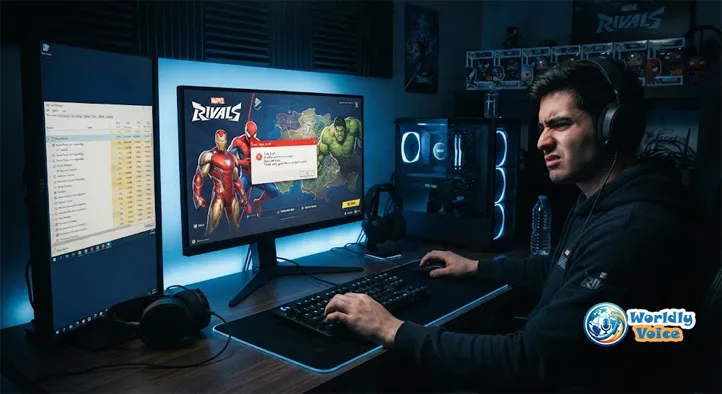
1. Restart Steam Completely Through Task Manager
This is the first fix I recommend because it solves the most common cause: a stale or broken Steam session.
Closing Steam with the X button is not enough. Steam often keeps background processes running, including Steam Client WebHelper. Those processes can hold onto outdated login data.
Here is what to do:
- Press Ctrl + Shift + Esc to open Task Manager.
- Look for:
- Steam
- Steam Client Service
- Steam Client WebHelper
- Steam Bootstrapper
- Right-click each one.
- Select End task.
- Wait 10–15 seconds.
- Relaunch Steam.
- Right-click Steam and choose Run as administrator if available.
- Launch Marvel Rivals again.
This fix is especially useful when you need to Resolve Steam client webhelper errors linked to login failures. Steam’s WebHelper handles parts of the client interface and session behavior. If it freezes or duplicates itself, Marvel Rivals may fail to authenticate correctly.
I noticed this was most effective after leaving Steam open overnight. The client looked normal, but authentication failed until every Steam background task was closed.
2. Check Steam and Marvel Rivals Server Status
Sometimes the issue is not on your PC. Steam has routine maintenance, commonly on Tuesday afternoons in US time zones. During that window, login, friends lists, matchmaking, and authentication can briefly fail.
This is one of the most overlooked causes of Troubleshooting Marvel Rivals server errors. Players reinstall the game, reset routers, and change settings when the real answer is to wait.
Check these sources:
- Steam Support for Steam account and client help.
- Marvel Rivals official X account for game-side outage or maintenance updates.
You can also check community reports on Reddit, Discord, or Steam discussions, but treat those as signals rather than confirmed sources.
If dozens of players report the same error at the same time, wait 15–30 minutes before making major changes. In my experience, temporary Steam service interruptions often resolve faster than expected.
This matters because not every login issue is local. A clean troubleshooting process asks one question first:
Is this happening only to me, or is it widespread?
If it is widespread, your best fix is patience.
3. Verify Integrity of Game Files in Steam
If Steam is working but Marvel Rivals still shows the error, the next step is file verification.
This is important after patches, interrupted downloads, system crashes, or failed updates. One damaged file can stop the client from communicating properly with Steam services.
Here is How to verify integrity of game files Steam users should follow:
- Open Steam.
- Go to your Library.
- Right-click Marvel Rivals.
- Select Properties.
- Choose Installed Files.
- Click Verify integrity of game files.
- Wait for Steam to scan and repair files.
- Relaunch the game.
Steam will compare your installed files with the correct version on its servers. If anything is missing or corrupted, it downloads the replacement.
This is a safe fix. It does not delete your Steam account, purchases, or normal game ownership data.
I recommend this step if the error appeared after:
- A game update
- A Steam download interruption
- A Windows crash
- Moving the game to another drive
- Installing or removing mods
This is also one of the most reliable ways to Fix Marvel Rivals login error 211 when the Steam client itself appears healthy.
If you recently read about app alerts in Instagram Notify, the idea is similar: one broken communication layer can make the whole system feel offline, even when most services are working.
4. Change DNS Settings for a Cleaner Connection
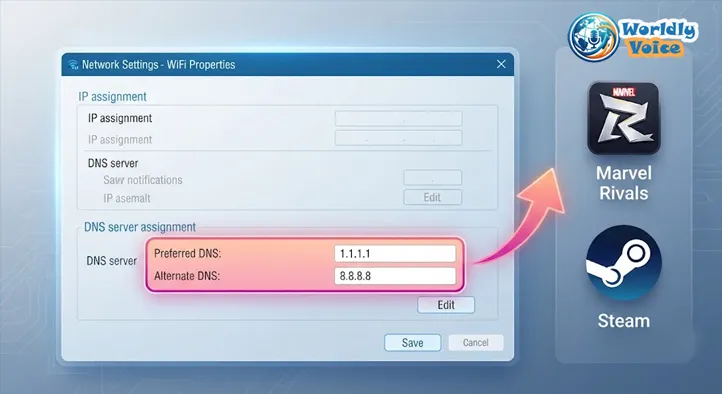
DNS sounds technical, but the idea is simple. DNS helps your PC find the right online servers. If your DNS provider is slow, unstable, or poorly routed, authentication requests can time out.
This is why DNS changes often help with Marvel Rivals network connectivity issues.
A common option is Google Public DNS:
- Preferred DNS: 8.8.8.8
- Alternate DNS: 8.8.4.4
You can review Google’s own documentation at Google Public DNS.
How to Change DNS on Windows 11
- Open Settings.
- Go to Network & internet.
- Select Wi-Fi or Ethernet.
- Open your active connection.
- Find DNS server assignment.
- Click Edit.
- Choose Manual.
- Turn on IPv4.
- Enter:
- Preferred DNS: 8.8.8.8
- Alternate DNS: 8.8.4.4
- Save and restart your PC.
You can also try Cloudflare DNS:
- 1.1.1.1
- 1.0.0.1
For a Marvel Rivals network error fix 2026, DNS is still one of the most practical steps because it addresses routing and handshake delays without changing game files.
After changing DNS, restart both Steam and Marvel Rivals. If possible, restart your router too.
5. Check Your Internet Stability
A fast connection is not always a stable connection.
You can have 500 Mbps download speed and still fail authentication if your connection drops packets, spikes in latency, or switches networks during launch.
Run a speed test and pay attention to:
- Ping
- Jitter
- Packet loss
- Upload stability
- Wi-Fi signal strength
For online games, stability matters more than raw speed.
I recommend using Ethernet if possible. Wired connections remove many common Wi-Fi problems, including interference from walls, routers, Bluetooth devices, and crowded apartment networks.
If you must use Wi-Fi:
- Move closer to the router.
- Restart the router.
- Use 5 GHz Wi-Fi if the signal is strong.
- Avoid downloads during launch.
- Pause cloud backups.
- Disconnect unused devices.
This step is especially relevant for Marvel Rivals connection issues Steam players see during login but not during normal web browsing.
A browser can recover from a brief delay. Game authentication often cannot.
6. Disable VPNs, Proxies, and Suspicious Overlays
VPNs can help with privacy, but they can also cause routing issues. Some VPN servers create unusual traffic paths that trigger login failures or anti-cheat suspicion.
If you use a VPN, proxy, or traffic filtering app, disable it temporarily.
Then:
- Close Marvel Rivals.
- Fully exit Steam.
- Turn off the VPN.
- Restart Steam.
- Launch the game again.
Also review overlays and tools such as:
- FPS counters
- Macro tools
- Network filters
- Mod managers
- Screen capture overlays
- Third-party controller tools
Not every overlay causes problems. Steam Overlay, Discord Overlay, and GPU tools usually work for most players. But when troubleshooting, reduce variables.
If the game launches after disabling a VPN or overlay, re-enable tools one at a time. That helps you identify the exact conflict.
This is the same clean testing mindset I recommend in broader guides like AnonVault Knowledge: isolate one variable, test it, then move forward.
7. Review Firewall and Antivirus Rules
Security software can block the traffic Marvel Rivals needs to authenticate through Steam. This is common after updates because executable files may change, causing antivirus tools to treat them as new or unknown.
Check your firewall if:
- The game worked yesterday.
- A patch installed today.
- Your antivirus recently updated.
- You use strict firewall rules.
- Steam works, but Marvel Rivals does not.
On Windows:
- Open Windows Security.
- Go to Firewall & network protection.
- Select Allow an app through firewall.
- Find Steam and Marvel Rivals.
- Allow them on private networks.
- If needed, allow public networks only if you understand the risk.
- Save changes.
- Restart Steam.
Avoid turning off your firewall permanently. That creates unnecessary risk. Instead, allow the specific app.
If you use third-party antivirus software, check its quarantine, network protection, or application control sections. Some tools silently block authentication traffic.
This is one of the quieter causes behind error code 211 Marvel Rivals, especially on PCs with strict security setups.
8. Sign Out of Steam and Refresh Your Login Session
If the error appeared after a password change, Steam Guard prompt, account recovery, or login from another device, your current Steam session may be broken.
Try this:
- Open Steam.
- Click your profile name.
- Select Log out of account.
- Fully close Steam through Task Manager.
- Reopen Steam.
- Sign in again.
- Complete Steam Guard verification.
- Launch Marvel Rivals.
This refreshes your account token. Think of it like replacing an expired ID badge. You still own the account, but the game needs a fresh confirmation.
This step often helps players trying to Fix Marvel Rivals login error 211 after account security changes.
9. Reboot Your PC and Router
This sounds basic, but it works more often than people expect.
A full reboot clears temporary network states, stuck drivers, cached DNS data, and background process conflicts.
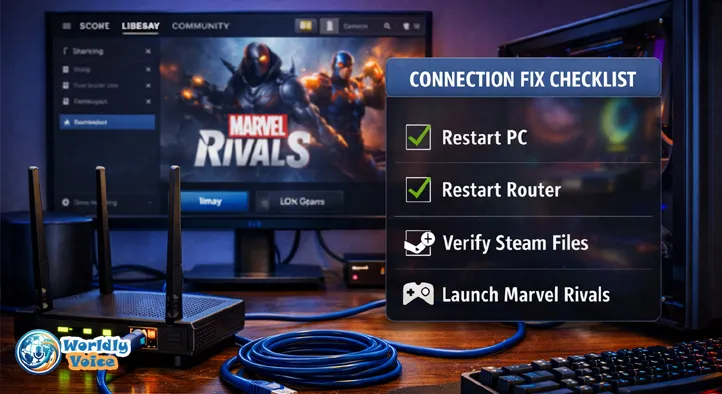
Use this order:
- Shut down Marvel Rivals.
- Exit Steam completely.
- Restart your PC.
- Unplug your router for 30 seconds.
- Plug the router back in.
- Wait until the internet is fully restored.
- Open Steam as administrator.
- Launch Marvel Rivals.
If the issue returns immediately, continue with DNS, firewall, and file verification. If it disappears, the cause was likely a temporary session or network state.
For readers who have seen regional tech guides like 239 Area Code, the same principle applies: location and routing can affect how digital services respond. Your physical region, ISP, and DNS path can all influence connection reliability.
10. When Should You Reinstall Marvel Rivals?
Reinstalling should not be your first move. It takes time and often does not fix authentication problems.
Consider reinstalling only after you have tried:
- Full Steam restart
- Steam sign-out and sign-in
- File verification
- DNS change
- Firewall review
- VPN disable
- Router restart
- Steam status check
If all of that fails, uninstall and reinstall Marvel Rivals from Steam.
Before doing so, make sure your Steam Cloud settings and account login are working. Most online progression should be account-based, but it is still smart to avoid unnecessary risk.
A reinstall is most useful when:
- Verification repeatedly finds broken files.
- The launcher crashes before login.
- The install folder was manually edited.
- Mods or third-party changes were removed incorrectly.
Is Error Code 211 a Marvel Rivals Server Problem?
Sometimes, yes. Usually, no.
Based on the pattern players report, error code 211 Marvel Rivals is most often related to Steam authentication, local network routing, or client-side session issues.
However, server-side problems can happen. NetEase Games and the Marvel Rivals team may perform maintenance, deploy patches, or experience regional service interruptions.
A server-side issue is more likely if:
- Many players report it at once.
- Official channels mention maintenance.
- Steam friends list or login is unstable.
- The error appears right after a large update.
- You can access other games but not Marvel Rivals.
If only your PC is affected, focus on local fixes.
Recommended Troubleshooting Order
Here is the order I would personally follow. It saves time and avoids unnecessary reinstalling.
| Step | Action | Why It Helps |
|---|---|---|
| 1 | End all Steam tasks in Task Manager | Clears stale authentication |
| 2 | Relaunch Steam as administrator | Reduces permission issues |
| 3 | Check Steam and Marvel Rivals status | Rules out outages |
| 4 | Verify game files | Repairs damaged files |
| 5 | Sign out and back into Steam | Refreshes login token |
| 6 | Disable VPN/proxy | Removes routing conflicts |
| 7 | Change DNS | Improves server lookup |
| 8 | Check firewall/antivirus | Allows authentication traffic |
| 9 | Restart router and PC | Clears temporary network states |
| 10 | Reinstall only if needed | Last-resort file reset |
This order works because it starts with the most common and least risky fixes.
FAQ: Error Code 211 Marvel Rivals
1. What is Error Code 211 in Marvel Rivals?
It means Marvel Rivals failed to connect to Steam for authentication. The game cannot verify your Steam session, so it blocks online access.
2. How to fix Marvel Rivals error code 211 quickly?
The quickest fix is to close Steam completely through Task Manager, end all Steam Client WebHelper processes, reopen Steam as administrator, and launch the game again.
3. Does Error Code 211 affect console players?
Usually, no. This issue is mainly tied to Steam authentication, so it affects PC players using Steam.
4. Can Steam maintenance cause Error Code 211?
Yes. Steam maintenance, especially on Tuesday afternoons in US time zones, can interrupt authentication. If many players are affected, wait 15–30 minutes.
5. Should I reinstall Marvel Rivals to fix the error?
Only as a last resort. First, restart Steam, verify files, change DNS, disable VPNs, and check firewall settings.
6. Can antivirus software cause Marvel Rivals connection issues?
Yes. Strict antivirus or firewall rules can block Steam or Marvel Rivals authentication traffic. Allow both apps through your firewall instead of disabling protection permanently.
Conclusion: The Best Way to Fix Error Code 211 Marvel Rivals
The most reliable fix for error code 211 Marvel Rivals is a complete Steam restart through Task Manager. End every Steam process, including Steam Client WebHelper, then relaunch Steam as administrator.
If that does not work, verify the game files, refresh your Steam login, change DNS, disable VPNs, and check firewall or antivirus rules. If the error appears during Steam maintenance, wait before changing anything.
In my experience, most players do not need a full reinstall. The problem is usually a broken Steam session, corrupted update file, unstable DNS route, or temporary service interruption.
Use the troubleshooting order above, test one fix at a time, and keep your setup simple while diagnosing the issue. For more practical error-solving content, you may also want to explore How to Fix the Error Llekomiss, Instagram Notify, AnonVault Knowledge, and 239 Area Code when those internal guides are published or updated.
References

Muhammad Ali is a digital content publisher and the founder of WorldlyVoice. With extensive experience in technical website management and SEO, he specializes in building high-performance editorial platforms that deliver credible and accessible information to a global audience.
Connect with Muhammad Ali:
Website: WorldlyVoice.com
Email: [email protected]
LinkedIn: Professional Profile
Facebook: Personal Profile
For inquiries, please reach out via the provided social channels or through the official contact portal on WorldlyVoice.