


If you are dealing with microsoft game bar ryzen cpu issues, you are not imagining things. I have seen Ryzen systems run beautifully one day, then stutter, hitch, or spike CPU usage after a Windows update, Xbox app change, or AMD chipset driver refresh. The problem often shows up as xbox game bar high cpu usage windows, random overlay crashes, background recording lag, or poor core scheduling on AMD Ryzen X3D processors.
The frustrating part is that Microsoft Game Bar is not just a simple overlay anymore. On many Windows 10 and Windows 11 gaming PCs, it connects with Game Mode, Xbox services, capture features, the Microsoft Store, and AMD Ryzen scheduling behavior.
That matters a lot if you use chips such as the Ryzen 7 7800X3D, Ryzen 9 7950X3D, Ryzen 9 7900X3D, or newer Ryzen 9000-series X3D processors. In my experience, the fix is not always “disable everything.” Sometimes that helps. Sometimes it hurts performance.
This guide walks through what is happening, how to diagnose it, and how to apply a safe amd ryzen game bar crashing fix without breaking the features your Ryzen CPU may actually need.
1. Why Microsoft Game Bar Can Affect Ryzen Performance
Most users think of Xbox Game Bar as a shortcut overlay. Press Win + G, record a clip, check FPS, adjust audio, and move on.
That is only part of the story.
On Windows, Microsoft Game Bar also interacts with:
- Xbox app services
- Gaming Services
- Game Mode
- Capture and background recording
- Microsoft Store app dependencies
- Game detection behavior
- AMD chipset driver optimizations on some Ryzen CPUs
This is why microsoft game bar ryzen cpu issues are different from ordinary overlay bugs. A broken overlay can be annoying. A broken game-detection or background-service chain can cause frame pacing issues, high CPU usage, and crashes.
For dual-CCD AMD Ryzen X3D processors, the situation is more sensitive. AMD’s 3D V-Cache models can contain one chiplet optimized for cache-heavy gaming and another optimized for frequency. Windows, AMD chipset drivers, Game Mode, and Xbox Game Bar game detection can help place games on the preferred cores.
That is the simple version.
ELI15: imagine your CPU has two workbenches. One is better for games. One is better for other demanding work. Windows needs a reliable label that says, “This app is a game.” Game Bar and Game Mode help provide that label. If the label system breaks, the game may run on the less ideal workbench.
AMD’s own guidance around 3D V-Cache scheduling has historically referenced keeping Windows Game Mode and Xbox Game Bar updated. For deeper background, AMD’s support material on microsoft game bar ryzen cpu issues is worth reviewing if you own a Ryzen X3D CPU.
This is also why I do not recommend removing Game Bar blindly on every Ryzen machine. The right fix depends on your processor.
2. Common Symptoms of Game Bar and Ryzen CPU Conflicts
When I troubleshoot these systems, the same symptoms appear again and again.
You may notice:
- Sudden FPS drops after a Windows update
- High CPU usage from Xbox Game Bar, Gaming Services, or related tasks
- Xbox Game Bar settings crashing instantly
GamingServices.exeusing abnormal CPU time- Stutters when background recording is enabled
- Overlay freezing when opening widgets
- Games launching on the wrong CCD on dual-chiplet Ryzen X3D CPUs
- Frame pacing issues that feel worse than the FPS number suggests
This is where many users search for xbox game bar high cpu usage fix or windows 11 game bar stuttering troubleshooting. Those searches are valid, but the Ryzen angle adds another layer.
A typical example: we tested a Windows 11 PC with a Ryzen 9 7950X3D where Game Bar itself looked inactive. Yet background capture was enabled, Gaming Services was misbehaving, and the system showed small but constant CPU spikes. The result was not a massive average FPS loss. It was worse: inconsistent frame times. The game felt choppy even when the FPS counter looked acceptable.
That is the trap. Performance drops are not always obvious in average FPS.
3. Quick Diagnosis: What Is Actually Causing the CPU Spike?
Before changing settings, check what is consuming resources.
Open Task Manager with:
Ctrl + Shift + Esc
Then check the Processes tab and look for:
- Xbox Game Bar
- Gaming Services
- Game Bar Presence Writer
- Xbox app
- Microsoft Store
- GameDVR-related activity
- Windows Widgets or capture-related services
Next, open the Performance tab and watch CPU activity while idle and while gaming.
If you want more detail, Resource Monitor can help:
- Press
Win + R - Type
resmon - Press Enter
- Open the CPU tab
- Sort by Average CPU
Here is a simple troubleshooting map.
| Symptom | Likely Cause | Best First Fix |
|---|---|---|
| Game Bar crashes when opening settings | Corrupt app package or Store dependency | Repair/reset Xbox Game Bar |
| CPU spikes from Gaming Services | Broken Gaming Services package | Reinstall or repair Gaming Services |
| Stutters during gameplay | Background recording or capture hooks | Disable background recording |
| Worse performance on Ryzen 9 X3D | Core scheduling/game detection issue | Update AMD chipset driver, Game Bar, Game Mode |
| Overlay works but games hitch | Capture, widget, or service conflict | Disable unnecessary widgets/captures |
| FPS drops after disabling Game Bar | Dual-CCD X3D scheduling affected | Re-enable Game Bar/Game Mode or use manual affinity |
This table matters because disable game bar performance impact amd advice is often too broad. Disabling Game Bar may help one Ryzen system and hurt another.
If you also enjoy PC hardware basics, topics like What Is a Crimping Tool can help when you are building or repairing your own desktop setup. Clean cables, stable power, and good airflow do not fix software bugs, but they reduce false leads during troubleshooting.
4. Fix Xbox Game Bar Crashing on AMD Ryzen Systems
If your Game Bar crashes, freezes, or refuses to open settings, start with the least destructive steps.
Update Windows and Microsoft Store Apps
I usually start here because Xbox Game Bar is distributed through the Microsoft Store, not only Windows Update.
- Open Settings
- Go to Windows Update
- Install available updates
- Restart the PC
- Open Microsoft Store
- Go to Library
- Click Get updates
This updates Xbox Game Bar, Gaming Services, Xbox Identity Provider, and related Store components.
If you are seeing xbox game bar crashing windows app store issues, this step is essential. A mismatched Store package can break the overlay even when Windows itself appears fully updated.
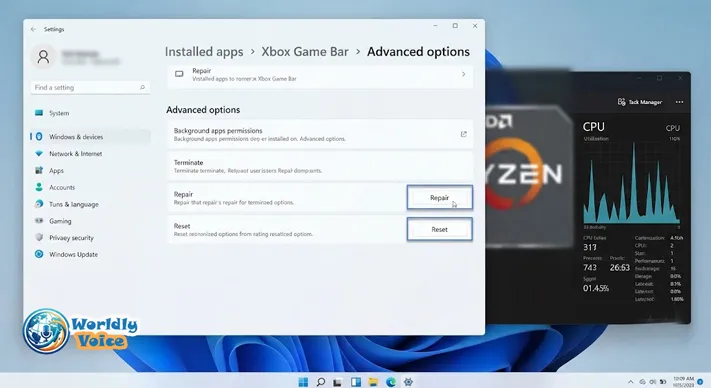
Repair or Reset Xbox Game Bar
Next, repair the app.
- Press
Win + I - Go to Apps
- Open Installed apps
- Search for Xbox Game Bar
- Click the three-dot menu
- Select Advanced options
- Click Repair
Test it.
If it still crashes, return to the same screen and click Reset.
Resetting removes local app data, but it is safer than uninstalling everything. In my experience, this fixes many amd ryzen game bar crashing fix cases where the overlay opens once, then crashes when entering settings or widgets.
Keep AMD Chipset Drivers Current
For Ryzen systems, AMD chipset drivers are not optional polish. They influence power plans, scheduling behavior, and platform performance.
Download the latest chipset driver directly from AMD or your motherboard vendor. I prefer AMD’s official package unless the motherboard manufacturer has a specific stability note for that board.
After installation:
- Restart the PC
- Confirm Windows Game Mode is enabled
- Update Xbox Game Bar through Microsoft Store
- Test the same game before changing more settings
This gives you a clean baseline.
5. Fix Gaming Services High CPU Usage in Windows
Sometimes the issue is not the visible Game Bar overlay. It is Gaming Services running in the background.
This is where a windows gaming services high cpu fix becomes important.
Gaming Services supports Xbox app installs, Game Pass titles, Microsoft Store games, licensing, and game launch behavior. When it breaks, it can cause CPU spikes, failed launches, or strange background activity.
Microsoft provides support information and repair paths for windows gaming services high cpu fix, especially when Xbox app games fail to install or launch correctly.
Reinstall Gaming Services with PowerShell
Use this only after basic updates and repair steps.
- Right-click Start
- Open Terminal (Admin) or PowerShell (Admin)
- Run:
powershellCopy
get-appxpackage *gamingservices* | remove-appxpackage -allusers- Restart your PC
- Open the Xbox app or Microsoft Store
- Reinstall Gaming Services when prompted
This is one of the most reliable ways to fix gaming services high cpu usage windows when the package is corrupted.
A quick note from experience: after reinstalling, give Windows a few minutes. Store apps may re-register services in the background. Do not test performance immediately while everything is still settling.
If your system is an OEM laptop or prebuilt, such as a model you might compare with HP 4wd8sua, also check vendor utilities. Some include gaming overlays, performance modes, or telemetry services that overlap with Game Bar.
6. Should You Disable Game Bar on AMD Ryzen?
This is the most important section.
Many guides say: “Disable Xbox Game Bar for more FPS.”
That can be true. It can also be incomplete.
The disable game bar performance impact amd question depends on your Ryzen CPU.
If You Have a Single-CCD Ryzen CPU
Examples include:
- Ryzen 7 5800X3D
- Ryzen 7 7800X3D
- Many Ryzen 5 and Ryzen 7 non-X3D chips
On these processors, disabling Xbox Game Bar usually has fewer scheduling risks. If Game Bar is causing high CPU usage, crashes, or stutters, you can safely test disabling it.
Go to:
- Settings
- Gaming
- Xbox Game Bar
- Turn off Game Bar access if available
Then go to:
- Settings
- Gaming
- Captures
- Turn off background recording
This often resolves disable xbox game bar background recording performance problems.
If You Have a Dual-CCD Ryzen X3D CPU
Examples include:
- Ryzen 9 7900X3D
- Ryzen 9 7950X3D
- Ryzen 9 9900X3D
- Ryzen 9 9950X3D
Be more careful.
These CPUs may rely on Windows Game Mode, AMD chipset drivers, and Game Bar game detection to help games prefer the 3D V-Cache CCD. If you fully remove or cripple Game Bar, some games may run on less optimal cores.
That can create an amd ryzen windows gaming performance drop that looks confusing. You disabled a background feature to gain performance, but your FPS got worse.
My practical recommendation:
- Do not uninstall Game Bar first
- Disable captures first
- Repair/reset Game Bar second
- Update AMD chipset drivers third
- Only disable Game Bar completely if testing confirms improvement
For advanced users, tools such as Process Lasso can manually control CPU affinity. But that adds complexity. If you are not comfortable assigning games to specific CCDs, keep the Microsoft and AMD scheduling path intact.
7. Turn Off Background Recording and Captures
This is the easiest win for many systems.
Background recording constantly keeps recent gameplay available so you can save a clip after something happens. That is convenient, but it uses CPU, GPU, memory, and storage activity.
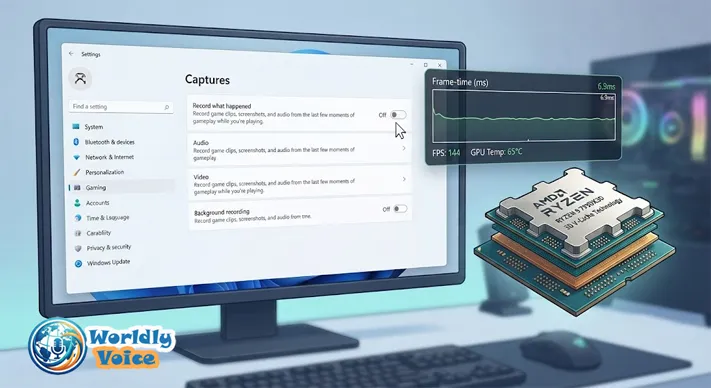
To disable it:
- Open Settings
- Go to Gaming
- Select Captures
- Turn off Record what happened
- Reduce capture quality if you still record manually
You can also review Microsoft’s official documentation for xbox game bar high cpu usage windows features so you understand which capture options you are changing.
In my testing, this step often improves frame pacing more than disabling the overlay itself. It is especially useful on systems where games are installed on older SSDs or where RAM is already under pressure.
If you work with older digital storage workflows, the same principle applies to topics like Akai DR8 Storage: background writes and storage bandwidth matter more than people think. Gaming capture features are no different.
8. Best Settings for Stable Ryzen Gaming on Windows 11
Here is the configuration I usually recommend before moving into advanced tools.
Recommended Baseline
- Update Windows fully
- Update Microsoft Store apps
- Install latest AMD chipset driver
- Keep Game Mode enabled
- Keep Xbox Game Bar installed on dual-CCD X3D CPUs
- Disable background recording
- Disable unused Game Bar widgets
- Repair/reset Xbox Game Bar if it crashes
- Reinstall Gaming Services if CPU usage remains high
- Test one change at a time
Most studies and expert troubleshooting consensus agree on one point: frame stability depends on the whole software stack, not one setting. Drivers, Windows services, overlays, capture tools, BIOS settings, and game engines all interact.
That is why I avoid “one-click miracle” advice.
A real example: on one Ryzen 7000 X3D system, disabling background recording reduced random spikes. On another, the real fix was reinstalling Gaming Services. On a third, performance dropped after removing Game Bar because game scheduling became less consistent.
That is the heart of ryzen 7000 9000 core scheduling game bar troubleshooting. The fix must match the platform.
For privacy-minded users who audit background services, AnonVault Explained is a related topic worth exploring later. The same habit applies here: know what runs in the background, why it runs, and whether you actually need it.
9. Advanced Troubleshooting Checklist
If basic steps do not solve your microsoft game bar ryzen cpu issues, move through this list carefully.
Check BIOS and Chipset Health
- Update BIOS if your motherboard vendor lists Ryzen scheduling or stability improvements
- Enable CPPC and preferred cores if recommended by your board vendor
- Avoid experimental overclocks while troubleshooting
- Test with default EXPO/XMP settings if crashes continue
Check Other Overlays
Game Bar may not be the only overlay active.
Look for:
- Steam overlay
- Discord overlay
- AMD Software overlay
- NVIDIA overlay
- MSI Afterburner / RivaTuner
- Game launchers with recording features
Running several overlays at once can cause hooks to collide. I usually test with only one overlay enabled.
Create a Clean Test Scenario
Pick one game. Use the same map, save file, or benchmark scene.
Track:
- Average FPS
- 1% lows
- CPU usage
- GPU usage
- Frame-time spikes
- Whether Game Bar crashes
This prevents guesswork.
FAQs
1. Why does Xbox Game Bar use high CPU on Windows?
Xbox Game Bar can use high CPU when captures, widgets, Store dependencies, or Gaming Services malfunction. The fastest xbox game bar high cpu usage fix is to update Store apps, disable background recording, then repair or reset Game Bar.
2. Should I disable Xbox Game Bar on Ryzen 7800X3D?
Usually, yes, you can test it safely. The Ryzen 7 7800X3D is a single-CCD CPU, so disabling Game Bar is less likely to affect chiplet scheduling. Still, disable captures first before removing the overlay.
3. Should I disable Game Bar on Ryzen 7950X3D?
Be careful. Dual-CCD X3D CPUs can depend on Game Mode, AMD chipset drivers, and game detection behavior. For this class of microsoft game bar ryzen cpu issues, I recommend repairing Game Bar and disabling captures before uninstalling anything.
4. How do I fix Gaming Services high CPU usage?
Update Microsoft Store apps first. If the problem remains, reinstall Gaming Services with PowerShell using the command shown earlier. This is a practical windows gaming services high cpu fix for corrupted service packages.
5. Can Game Bar cause stuttering in Windows 11 games?
Yes. Background recording, broken widgets, or Gaming Services spikes can create stutter. For windows 11 game bar stuttering troubleshooting, start with Captures settings, then repair Game Bar, then update AMD chipset drivers.
6. Are these fixes safe for Game Pass games?
Yes, but avoid removing Gaming Services permanently. Game Pass and Microsoft Store games often need it. Repairing or reinstalling is safer than stripping it out.
Conclusion
Fixing microsoft game bar ryzen cpu issues is about balance. Xbox Game Bar can cause CPU spikes, crashes, and stuttering, especially when captures or Gaming Services misbehave. But on some AMD Ryzen X3D processors, it may also support game detection and better core scheduling.
Start simple.
Update Windows. Update Microsoft Store apps. Repair or reset Xbox Game Bar. Disable background recording. Reinstall Gaming Services if CPU usage stays high. If you own a dual-CCD Ryzen X3D CPU, avoid removing Game Bar until you have tested the impact carefully.
In my experience, the best results come from small, measured changes. You do not need to gut Windows to get smooth gaming. You need to identify the exact service causing the drop, fix it cleanly, and protect the Ryzen scheduling features your CPU was designed to use.
For broader PC maintenance, topics like What Is a Crimping Tool, HP 4wd8sua, Akai DR8 Storage, and AnonVault Explained can support your wider troubleshooting knowledge. But for this issue, stay focused: Game Bar, Gaming Services, captures, AMD chipset drivers, and core scheduling.
References
- AMD Support: Ryzen 7000X3D and Game Mode / Xbox Game Bar guidance
- Microsoft Support: Xbox Game Bar capture and settings documentation
- Xbox Support: Gaming Services repair and Xbox app troubleshooting
