


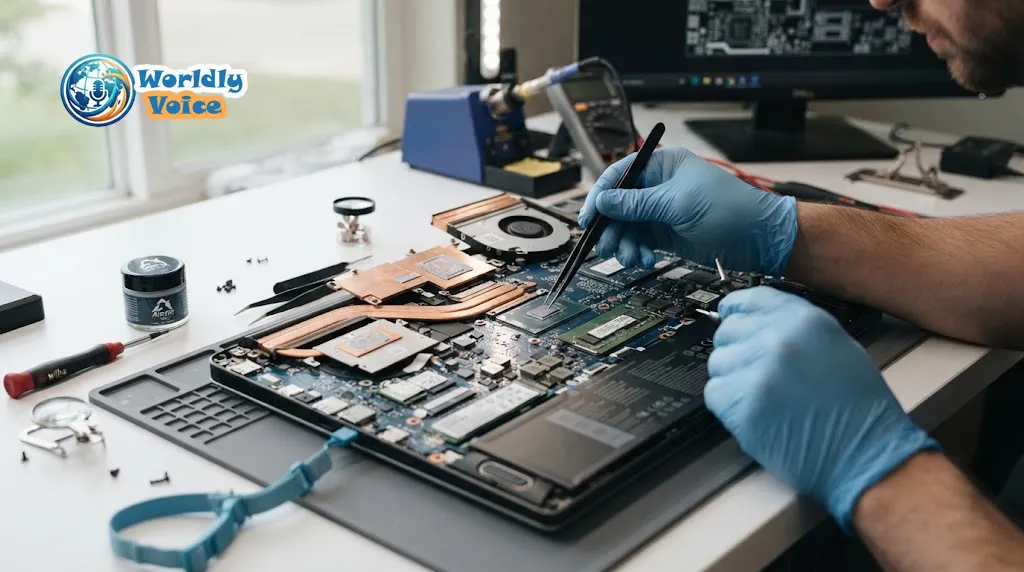
When a laptop starts to lag, replacing the processor seems like the obvious fix, and many people search for how to upgrade a laptop processor before asking whether it is possible at all. That order matters, because on most machines sold in recent years the answer decides everything else.
So, can you upgrade a laptop processor? Sometimes, but on most modern laptops a direct CPU swap isn’t possible. Intel’s guidance on upgrading a laptop processor says modern laptops are highly integrated and the processor is often soldered to the motherboard. Intel recommends contacting your system or motherboard manufacturer before attempting an upgrade. A minority of older and specialized laptops use removable chips, and a few modular designs let you replace the whole mainboard instead.
The seven steps below work as a checklist. Follow them in order and you will either confirm that a swap is realistic for your machine or avoid paying for a processor that could never be installed.
How Laptop Processor Upgrades Actually Work
A desktop motherboard usually has a socket. It has a grid of contacts and a retention mechanism that lets you lift one processor out and drop another in, provided the chipset, firmware, power delivery and cooler all support the new chip. Laptops are built under tighter constraints. Thin chassis, low weight, long battery life and compact boards all push manufacturers toward attaching the processor directly to the board.
Two terms explain most of what follows. A socketed processor sits in a removable socket and can, in principle, be replaced. A soldered processor, usually called BGA (ball grid array), is permanently attached through tiny solder balls under the chip, so it cannot be lifted out like a desktop CPU. Processor spec sheets list the package type, for example FCBGA for soldered or rPGA for socketed. That one label is the central fact of this topic.
The processor is also only one part of a system that depends on memory, storage and the board around it. Our explainer on what the CPU does on a computer shows how those parts work together, which helps when judging whether a faster chip would change anything you notice.
Step 1: Identify Your Exact Laptop Model and Processor
Start by collecting the details that every later step depends on:
- The manufacturer and full model number, often printed on a label under the laptop
- The processor name and generation
- The BIOS/UEFI version
- Any motherboard information the manufacturer publishes
On Windows, open Settings → System → About to see the processor name. System Information (msinfo32) shows the BIOS version. A free utility such as CPU-Z can list the processor package and related details.
“I have an Intel Core i5” is not enough information. Two i5 chips from different generations can differ in package type, power limits and the chipset they need.
Step 2: Check Whether the CPU Is Soldered or Socketed
Don’t buy a replacement processor until you have answered this question. There are four reliable ways to find out:
- Service manual: Search for your model name plus “service manual”. If the manual shows a processor removal procedure, the chip is replaceable. If the processor is not listed as a serviceable part, assume it is soldered.
- Processor specification page: Look up your exact chip on the manufacturer’s official product database and read the package or “sockets supported” field.
- Identification software: CPU-Z and similar tools report package information.
- Manufacturer support: Official documentation or a support request can confirm which processors your model supports.
A genuine service manual is far more trustworthy than a forum post or a random blog. If the sources disagree, the manufacturer’s documentation wins.
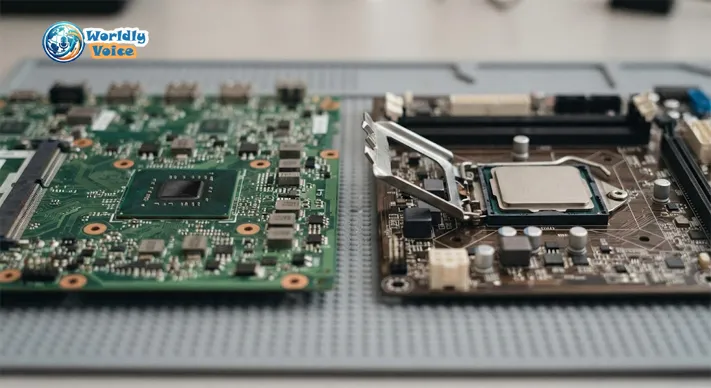
Step 3: Check Motherboard and BIOS Compatibility
Finding a socket does not mean any compatible-looking chip will work. Socket compatibility is only the starting point.
Check the chipset, the manufacturer’s list of supported processors, the processor generation and the BIOS/UEFI version. Firmware has to recognize the new chip. If it doesn’t, the laptop may refuse to start, and a machine that won’t boot is hard to repair with a BIOS update. Generation jumps are especially risky, since newer chips often need a different socket and chipset even when the product names look similar.
Step 4: Check Power and Cooling Requirements
A processor that physically fits can still overwhelm a laptop. The heatsink, heat pipes, fan, voltage regulation and chassis airflow were all designed around the original chip’s power draw. Compare the thermal design power (TDP) of your current chip and the candidate. TDP is a manufacturer rating that roughly describes the heat the cooling system must handle.
A chip that runs substantially hotter than the original can cause thermal throttling, overheating, instability, unexpected shutdowns and, in the worst case, hardware damage. Wherever possible, stay within the processor configurations your manufacturer officially supports for that model.
Step 5: Decide Whether a CPU Upgrade Is Worth It
Before buying anything, ask whether the processor is actually your bottleneck. Common causes of a slow laptop include too little RAM, an aging hard drive, too many startup programs, dust-clogged fans, thermal throttling and failing storage.
HP’s laptop upgrade guide states that in most cases you can’t upgrade a laptop processor, and it suggests looking at RAM first when a laptop feels slow. A quick check helps. Open Task Manager during normal use and watch the Performance tab. If memory sits near its limit or the disk is pinned at 100%, a new CPU would change very little. If the processor is consistently maxed out in the work you actually do, the case for a CPU swap is stronger.
Then weigh the cost. A compatible used chip, your time and the risk of damage are often not worth the gain, especially when the new processor is only a generation or two newer than the old one.
Step 6: How to Replace a Laptop CPU If It Is Socketed
This procedure applies only to laptops with a removable, socketed processor. Laptop construction varies widely, so treat the list below as a general outline and follow your model’s service manual. Opening your laptop can also void the warranty, according to HP, so check your terms first.
If you have confirmed that how to replace a laptop CPU applies to your machine, the usual sequence looks like this:
- Back up your important data.
- Shut the laptop down completely and unplug the charger.
- Disconnect or remove the battery, as your model’s design allows, and ground yourself to avoid static discharge.
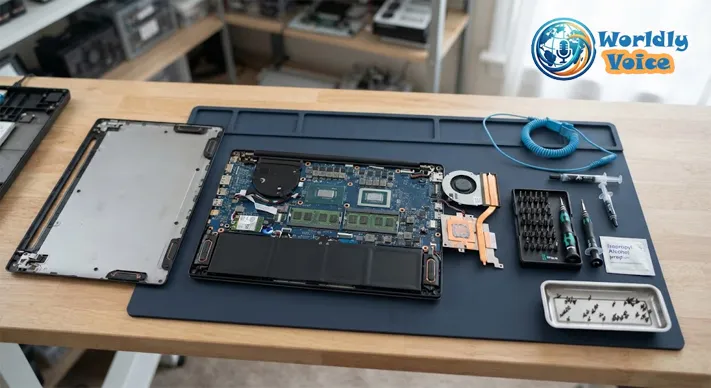
- Remove the bottom cover and any components blocking access to the cooling assembly.
- Remove the fan and heatsink assembly.
- Clean off the old thermal compound from the heatsink and the chip.
- Release the socket’s retention mechanism and lift out the old processor carefully.
- Seat the supported replacement chip in the correct orientation, without forcing it.
- Apply fresh thermal compound and secure the cooling assembly evenly.
- Reconnect the battery and other parts, then reassemble the laptop.
Step 7: Test the Laptop After Installing the New CPU
Don’t stop once the laptop powers on. Run through these checks:
- BIOS/UEFI: Confirm the system recognizes the new processor.
- Operating system: Check that Windows or Linux identifies the correct CPU.
- Temperatures: Watch idle and load temperatures with a monitoring tool and make sure they are reasonable.
- Stability: Look for crashes, freezes, unexpected shutdowns, throttling or boot problems.
- Performance: Run a CPU benchmark or your normal workload and compare the results with what you expected.
Stable behavior across several days of ordinary use is a better sign than a single successful benchmark run.
What If Your Laptop Processor Is Soldered?
Then you generally cannot replace it the way you would a desktop CPU. Removing and replacing a BGA chip requires specialized board-level rework equipment and considerable expertise. It is not an ordinary do-it-yourself upgrade.
So can you replace a laptop CPU that is soldered? Technically, a skilled repair technician with the right equipment can remove and reattach some BGA components. In practice the cost, the risk to the board and the lack of firmware and cooling support make it unrealistic for most owners. Avoid absolute claims, though. Some older machines and specialized desktop-replacement laptops do use socketed chips, which is why Step 2 matters.
Can You Upgrade a Laptop From i5 to i7?
Usually not on modern laptops. The question is misleading because the “i5” or “i7” tier doesn’t determine compatibility. What matters is the exact model, generation, package type, motherboard, BIOS, power requirements, cooling and the manufacturer’s supported list.
On a soldered-CPU laptop, moving from an i5 to an i7 normally means replacing the motherboard or the whole laptop, not just the chip. On a socketed model, an upgrade is possible only when the specific i7 appears on the supported list and the cooling system can handle it.
What Can You Upgrade Instead If the CPU Cannot Be Replaced?
Several upgrades can make a laptop feel noticeably faster without touching the processor:
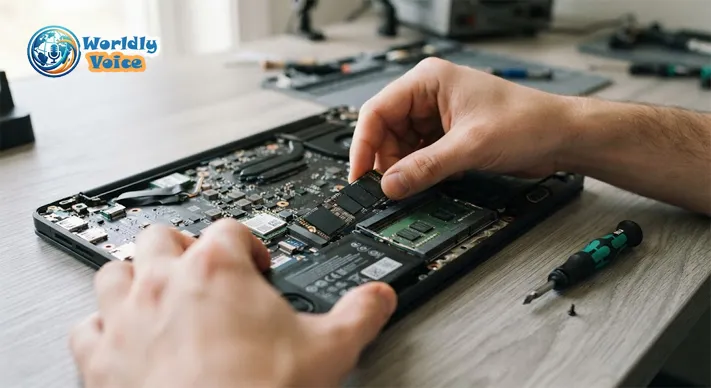
- RAM: If the memory is removable and your laptop supports a larger capacity, extra RAM helps with multitasking. Some models solder the memory, so check first.
- SSD: Replacing an old hard drive with a solid-state drive usually improves boot times and application loading.
- Cooling: Cleaning dust from fans and vents, and addressing thermal paste on older units, helps a processor sustain its intended speed.
- Software: Trimming startup programs and fixing software problems can improve responsiveness.
A few designs offer a genuine route to a newer processor through modularity. Framework’s laptops, for example, have a replaceable mainboard that holds the processor, so you swap the whole board rather than the chip. In its own description of the upgradeable mainboard, Framework notes that the thermal system for its original laptop was designed to handle 28W of continuous processor load. This is a useful reminder of why cooling and board design have to be matched.
For something less specialized, an older bulky gaming laptop often has easier access to RAM, storage and cooling. The Clevo NH70 review describes one such machine, where upgrades focus on memory, storage and maintenance rather than the processor itself.
When Is Buying a New Laptop Better Than a CPU Upgrade?
If the laptop is several years old, a replacement can make more financial sense than stacking upgrades on it. Compare your realistic options:
| Option | Works best when | Main limitation |
|---|---|---|
| Socketed CPU swap | Your model has a removable chip and a supported faster one | Compatibility, heat and BIOS risks |
| RAM or SSD upgrade | The system is slow because of memory or storage | Won’t fix a weak processor |
| Mainboard replacement | The laptop is modular or a manufacturer board exists | Often costly, and rarely available |
| New laptop | The laptop is old and several parts are weak | Highest upfront cost |
Beyond price, think about the laptop’s age, battery condition, display quality, RAM and storage limits, remaining warranty and how long you expect the machine to last. If the battery is worn and the screen is dim, a new processor won’t fix the parts you actually dislike.
Graphics-heavy work is a special case. HP also notes that upgrading a laptop’s graphics card is not possible in most cases, so people who need more power for tasks like editing high-resolution video are usually choosing a new machine. In that situation, a guide to laptop GPU options for 4K video editing can help narrow the choice.
Frequently Asked Questions
How can I tell if my laptop CPU is soldered without opening it?
Look up your exact processor on the manufacturer’s specification page and read the package field. FCBGA means soldered, while rPGA or a similar PGA label indicates a socket. Confirm the result against your laptop’s service manual, since a manufacturer can still restrict which chips a socketed model accepts.
Can I upgrade my laptop’s processor to a newer generation?
Rarely. Newer generations often require a different socket and chipset, so even when a chip fits physically, the motherboard and BIOS may not support it. Treat the manufacturer’s supported-processor list as the final word.
How much does a laptop processor upgrade cost?
There’s no universal price. For many modern laptops, a direct CPU replacement isn’t an available upgrade at all, so the realistic cost may be a new motherboard or a new laptop. When a swap is possible, add the price of a compatible chip, thermal compound and the risk of damage.
Will upgrading my laptop void the warranty?
It can. HP warns that upgrading can void your warranty, and opening a laptop may breach its terms. Check the warranty conditions before removing any panels.
Is a laptop CPU upgrade worth it?
For most modern laptops a direct upgrade isn’t possible, and for the rest the gain is often modest compared with the cost and risk. RAM, an SSD, cooling maintenance or a replacement laptop are usually more practical.
Final Verdict
Knowing how to upgrade a laptop processor starts with knowing whether yours can be upgraded at all. Identify the exact model, find out whether the chip is soldered or socketed, and check compatibility, cooling and real-world benefit before spending anything. If the processor is soldered, which is the most common case on modern laptops, a laptop processor upgrade is off the table, and RAM, storage, cleaning or a new machine will serve you better. Your practical next step is simple: write down your exact model number and look up its service manual today.
References
- Intel, “How to Upgrade the Laptop’s Processor”: https://www.intel.com/content/www/us/en/support/articles/000088013/processors.html
- HP, “How to Upgrade Your Laptop”: https://hp.com/gb-en/shop/tech-takes/how-to-upgrade-your-laptop
- Framework, “The Upgradeable Mainboard”: https://frame.work/blog/the-upgradeable-mainboard
