


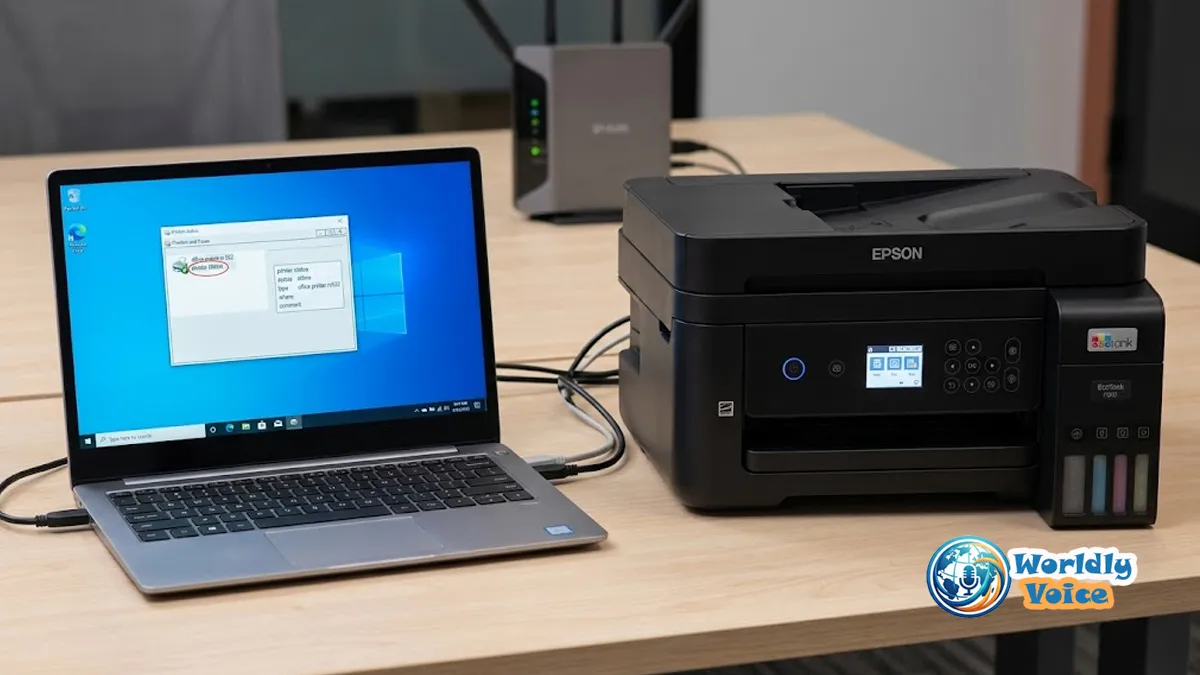
If you keep wondering, “why does my Epson printer keep going offline?”, you are probably dealing with a communication problem rather than a broken printer. I find that the most frustrating cases are the ones where the Epson printer looks perfectly normal—powered on, connected to Wi-Fi, and showing no obvious error—yet Windows or macOS insists that it is unavailable.
That happens because “offline” does not always mean the printer has disconnected from Wi-Fi. Your computer may be communicating with the wrong IP address, holding a stuck print job, using an outdated printer entry, or failing to detect the printer correctly.
The good news is that you can usually diagnose the problem without replacing the printer.
In this guide, I’ll walk through practical Epson printer offline troubleshooting for Windows and Mac, starting with the easiest checks and moving toward network and port fixes.
Why Does My Epson Printer Keep Going Offline?
The most common causes fall into a few categories:
- The printer and computer are on different Wi-Fi networks.
- The printer’s IP address has changed.
- A Windows print queue is stuck.
- Use Printer Offline is enabled.
- The Windows Print Spooler has stopped responding.
- A WSD printer port is no longer communicating correctly.
- The printer’s Wi-Fi signal is unstable.
- A router or mesh-network configuration has changed.
- Epson software, drivers, or firmware are outdated.
- The printer entry on Windows or macOS has become corrupted.
Think of the connection like a delivery address. Your printer can be sitting in the same room, but if your computer is sending the print job to yesterday’s address, the document will never arrive.
The first question to ask
Before changing settings, check whether the printer itself is connected to your network.
Epson recommends checking the printer’s network status information and confirming that the computer and printer are using the same wireless network. A network status sheet can also reveal the printer’s current IP address and connection information.
That one check can save you from changing several Windows settings unnecessarily.
1. Your Epson Printer’s IP Address Changed
This is one of the most overlooked causes of recurring offline messages.
Your router normally uses DHCP to assign local IP addresses to devices. Imagine the Epson printer receives:
192.168.1.25
Windows creates a connection that reaches the printer at that address.
Later, the router may assign:
192.168.1.47
The printer is still connected. Windows, however, may still be trying to reach the old address.
That creates a classic Epson printer IP address problem.
How to check it
Print or view your Epson printer’s network status information. Look for its current IP address.
Then check the printer configuration on Windows.
If the addresses do not match, you have probably found the problem.
A better long-term solution
For a home network, I generally recommend using a DHCP reservation in the router when possible. It tells the router to keep assigning the same IP address to the printer.
Epson also notes that, when TCP/IP is being used, the printer’s IP address needs to be correct for the network.
A stable address is particularly useful if your Epson printer keeps disconnecting from Wi-Fi or repeatedly disappears after working normally.
2. Windows Has Marked the Printer Offline
Sometimes the network is fine. Windows is simply holding the printer in an offline state.
Microsoft specifically recommends checking Use Printer Offline and Pause Printing when a printer appears offline even though it is powered on and connected.
Try this:
- Open Settings.
- Select Bluetooth & devices.
- Choose Printers & scanners.
- Select your Epson printer.
- Open the print queue.
- Check the Printer menu.
- Make sure Use Printer Offline is not selected.
- Make sure Pause Printing is not selected.
- Cancel any documents that are stuck.
Then send a small test document.
If it prints immediately, the printer was probably reachable all along.
If your problem is more specific, see Epson ET-2800 Not Printing? for another printer-focused troubleshooting guide.
3. A Stuck Print Queue Is Blocking Everything
A single failed document can sometimes hold up every job behind it.
This is why an epson printer says offline won’t print situation can sometimes be fixed simply by clearing the queue.
Open:
Settings → Bluetooth & devices → Printers & scanners → Epson printer → Open print queue
Cancel the pending documents.
Microsoft’s current Windows guidance recommends clearing pending jobs when an offline printer refuses to print.
If a document refuses to disappear, restart the Print Spooler.
How to reset Print Spooler Epson printer problems
The Print Spooler is a Windows service that manages print jobs. When it stops responding, documents can remain frozen and the printer may appear unresponsive.
To restart it:
- Press Windows + R.
- Type
services.msc. - Press Enter.
- Find Print Spooler.
- Right-click it.
- Select Restart.
Microsoft recommends clearing the queue and restarting the Print Spooler when print jobs become stuck.
For detailed official guidance, see reset print spooler epson printer.
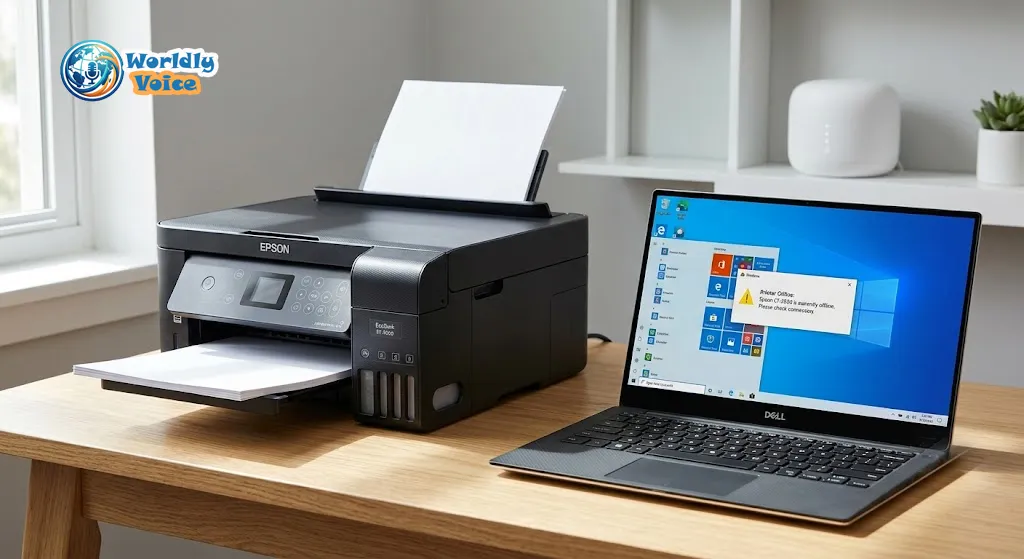
4. Your Epson Printer Is Not Really on the Same Wi-Fi Network
This sounds obvious, but it causes many Epson printer wireless connection issues.
For example, your laptop might be connected to your home’s main Wi-Fi while the printer is connected to a guest network. Both devices have internet access, but they may not be allowed to communicate with each other.
Check the Wi-Fi name shown on the printer and compare it with the network shown on your computer.
Epson’s troubleshooting guidance also recommends confirming that the computer and printer are using the same wireless network.
This is especially important after:
- Replacing a router
- Changing your Wi-Fi password
- Adding a mesh Wi-Fi system
- Renaming the wireless network
- Changing router security settings
- Moving the printer farther from the router
If you have an Epson printer not connecting to Wi-Fi, fix that connection first. Windows troubleshooting cannot compensate for a printer that is genuinely off the network.
For model-specific network instructions, reconnect epson printer to wifi network provides useful Epson guidance.
5. WSD or Printer Port Problems on Windows
Windows can discover network printers using WSD, or Web Services for Devices.
That automatic setup is convenient. But if the printer’s network identity changes or Windows has trouble with discovery and status detection, the printer can repeatedly appear offline.
If you know the Epson printer’s IP address and it is stable, an alternative is a Standard TCP/IP Port.
On Windows:
- Open Control Panel.
- Select Devices and Printers.
- Right-click the Epson printer.
- Select Printer properties.
- Open the Ports tab.
- Check the selected port.
If you are using WSD and the printer repeatedly disappears, a Standard TCP/IP configuration may be worth testing.
I would not change this setting blindly. First verify the printer’s IP address. Otherwise, you could simply create another configuration that breaks when the address changes.
6. Weak Wi-Fi or Mesh Networking Is Interrupting the Connection
An Epson printer may be located in a room where a laptop receives excellent Wi-Fi but the printer does not.
That difference matters.
Printers often stay in one fixed location, sometimes behind furniture or several rooms away from the router. A weak or unstable signal can create intermittent communication rather than a complete disconnection.
If you have a mesh system, temporarily test the printer closer to the main router.
Also check whether the printer reconnects after restarting the router.
The goal is to determine whether you have an Epson printer network connection problem or a Windows configuration problem.
A useful test is simple:
If the printer’s network status says disconnected, troubleshoot Wi-Fi.
If the printer’s network status says connected but Windows says offline, troubleshoot Windows communication.
That distinction makes the rest of the process much easier.
7. Your Epson Driver or Firmware Is Outdated
Software should not be the first thing you blame, but it should not be ignored either.
Epson provides software updates for its printers, including the Epson Software Updater. Epson documentation recommends periodically checking for available software updates, while firmware updates may address performance, functionality, or minor bugs depending on the model.
Check for:
- Epson printer driver updates
- Epson Software Updater updates
- Firmware updates
- Windows updates
- macOS updates
Be careful during firmware installation. Do not switch off the printer while an update is running.
For Windows, Microsoft also recommends keeping printer drivers current and notes that reinstalling a printer can help when an existing installation is not responding.
If you’re comparing printer hardware before replacing an unreliable model, HP 4wd8sua Specs may also be useful.
8. The Epson Printer Entry Is Corrupted
Sometimes everything else looks right, but the computer’s printer installation is the problem.
This can happen after a router change, operating-system update, driver change, or repeated failed installations.
On Windows, remove the Epson printer from:
Settings → Bluetooth & devices → Printers & scanners
Then restart the computer and add the printer again.
Microsoft includes removing and reinstalling a printer among its recommended offline-printer troubleshooting steps.
On Mac, go to:
Apple menu → System Settings → Printers & Scanners
Remove the Epson printer and add it again.
Apple recommends creating a new printer queue when an existing queue may be corrupted. It also notes that a network printer may be unavailable when the Mac and printer are on different networks.
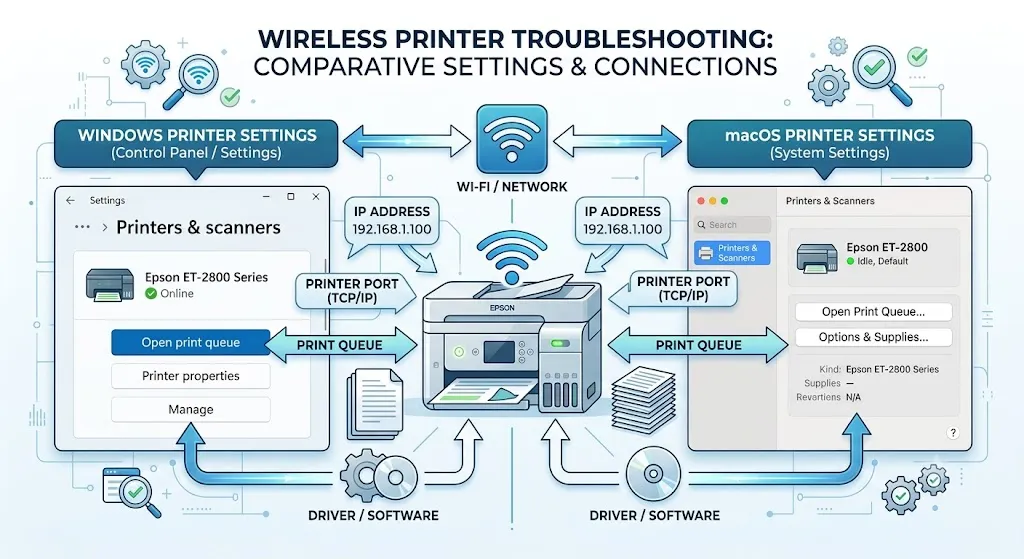
Windows vs. Mac: Which Fix Should You Try?
| Problem | Windows | Mac |
|---|---|---|
| Printer offline | Check queue and Use Printer Offline | Check printer status and queue |
| Stuck jobs | Clear queue and restart Print Spooler | Cancel or resume jobs in Print Centre |
| Wi-Fi problem | Confirm same network and IP | Confirm same network and printer availability |
| Driver issue | Update driver through Windows/Epson | Check printer software and AirPrint compatibility |
| Corrupted setup | Remove and reinstall printer | Remove and add printer again |
| Severe configuration problem | Reinstall printer | Reset Printing System |
Apple’s current Mac guidance allows you to pause, resume, or delete print jobs through Print Centre. If normal troubleshooting fails, Apple also provides a Reset Printing System option that removes the configured printers and requires them to be added again.
I would treat that reset as a last resort, not the first step.
Epson Printer Models Commonly Discussed With Offline Problems
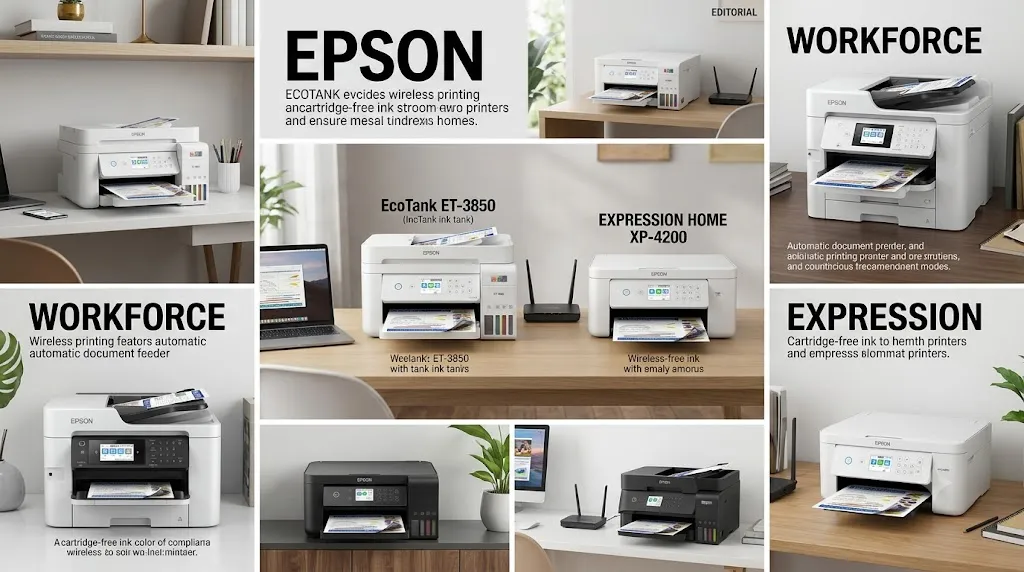
The issue is not limited to one Epson family. Wireless EcoTank, WorkForce, and Expression models can all experience network, queue, driver, or computer-communication problems.
Models that frequently appear in troubleshooting discussions include:
- Epson EcoTank ET-2800
- Epson EcoTank ET-2850
- Epson EcoTank ET-3800
- Epson EcoTank ET-3850
- Epson WorkForce WF-2830
- Epson WorkForce WF-3820
- Epson WorkForce WF-4830
- Epson Expression Home XP-4100
- Epson Expression Premium XP-6100
I would not call these models inherently defective. A model appearing frequently in online troubleshooting discussions does not prove that it has a higher failure rate.
The more useful takeaway is that the same underlying causes—Wi-Fi instability, changing IP addresses, print queues, drivers, and printer discovery—can affect many wireless Epson models.
For broader printer and hardware advice, explore Technology for related troubleshooting and device guides.
A Simple 5-Minute Troubleshooting Order
If you need to print immediately, don’t change ten settings at once.
Use this order:
- Check the printer’s Wi-Fi connection.
- Confirm the computer and printer are on the same network.
- Check the printer’s IP address.
- Clear stuck print jobs.
- Turn off Use Printer Offline.
- Restart the Windows Print Spooler.
- Restart the printer and computer.
- Check the printer port if the problem returns.
- Update Epson software and firmware.
- Remove and reinstall the printer if necessary.
This order matters because it moves from simple, low-risk checks toward more advanced configuration changes.
If you jump straight into ports or firmware, you may solve the wrong problem.
Frequently Asked Questions
Why does my Epson printer keep going offline?
The most common causes are Wi-Fi problems, changing IP addresses, stuck print jobs, incorrect Windows settings, printer-port problems, outdated software, or a corrupted printer installation.
Why does my Epson printer say offline when it is connected to Wi-Fi?
Wi-Fi connectivity does not guarantee that your computer can communicate with the printer. Windows may be using an outdated IP address or printer port, while macOS may have an old or corrupted printer queue.
How do I fix an Epson printer that says offline and won’t print?
Start by checking the Wi-Fi connection and IP address. Then clear the print queue, disable Use Printer Offline, and restart the Windows Print Spooler if you’re using Windows.
How do I reset Print Spooler for an Epson printer?
The Print Spooler is a Windows service rather than an Epson-specific feature. Open services.msc, find Print Spooler, and select Restart after clearing stuck print jobs. Microsoft recommends this approach for frozen Windows print queues.
How do I fix an Epson printer offline error on Mac?
Check the printer’s network connection, clear paused jobs, update the printer software, and remove and re-add the printer if necessary. If the configuration remains corrupted, macOS offers Reset Printing System as a more comprehensive final step.
Final Verdict
If you’re still asking, “why does my Epson printer keep going offline?”, resist the temptation to assume that the printer is failing.
Start with communication.
Is the Epson printer actually connected to Wi-Fi? Is your computer on the same network? Does the printer have the IP address you expect? Is Windows holding a stuck print job or using the wrong printer configuration?
Those questions usually reveal more than repeatedly turning the printer off and on.
For Windows, focus on the Wi-Fi connection, IP address, print queue, Use Printer Offline setting, Print Spooler, printer port, and driver.
For Mac, focus on network availability, Print Centre, printer software, the printer queue, and re-adding the printer.
If the problem keeps returning, aim for a stable network configuration rather than another temporary restart.
For authoritative reference material, see Epson printer offline troubleshooting, how to fix epson printer offline error, and Epson printer not communicating with computer.
Most importantly, remember this: an “offline” message describes a communication state. It does not automatically mean the Epson printer is broken.
